
Leadsquared
Leadsquared
Integrate your LeadSquared CRM
About the Integration:
Integrate Zipteams with your LeadSquared CRM, a powerful combination that streamlines your sales process and eliminates the need for manual data entry. With this integration, your sales team can easily capture meeting details and recordings, which are automatically synced to the LeadSquared CRM in real-time. This all-in-one solution allows you to focus on closing deals, while Zipteams takes care of the rest. Setting up this integration is easy, follow these simple steps and you’ll be up and running in no time.
Integration Features include:
Integration Requirements
Admin account on Zipteams for Enterprise PlanAdmin account on LeadSquared CRM
Section 1 - Connecting LeadSquared CRM to Zipteams
Setting up this integration is easy, follow these 3 simple steps and you’ll be up and running in no time.
Begin by logging into your Zipteams admin account at https://app.zipteams.com > Go to Setup > Set your Organization > Connect your CRM.
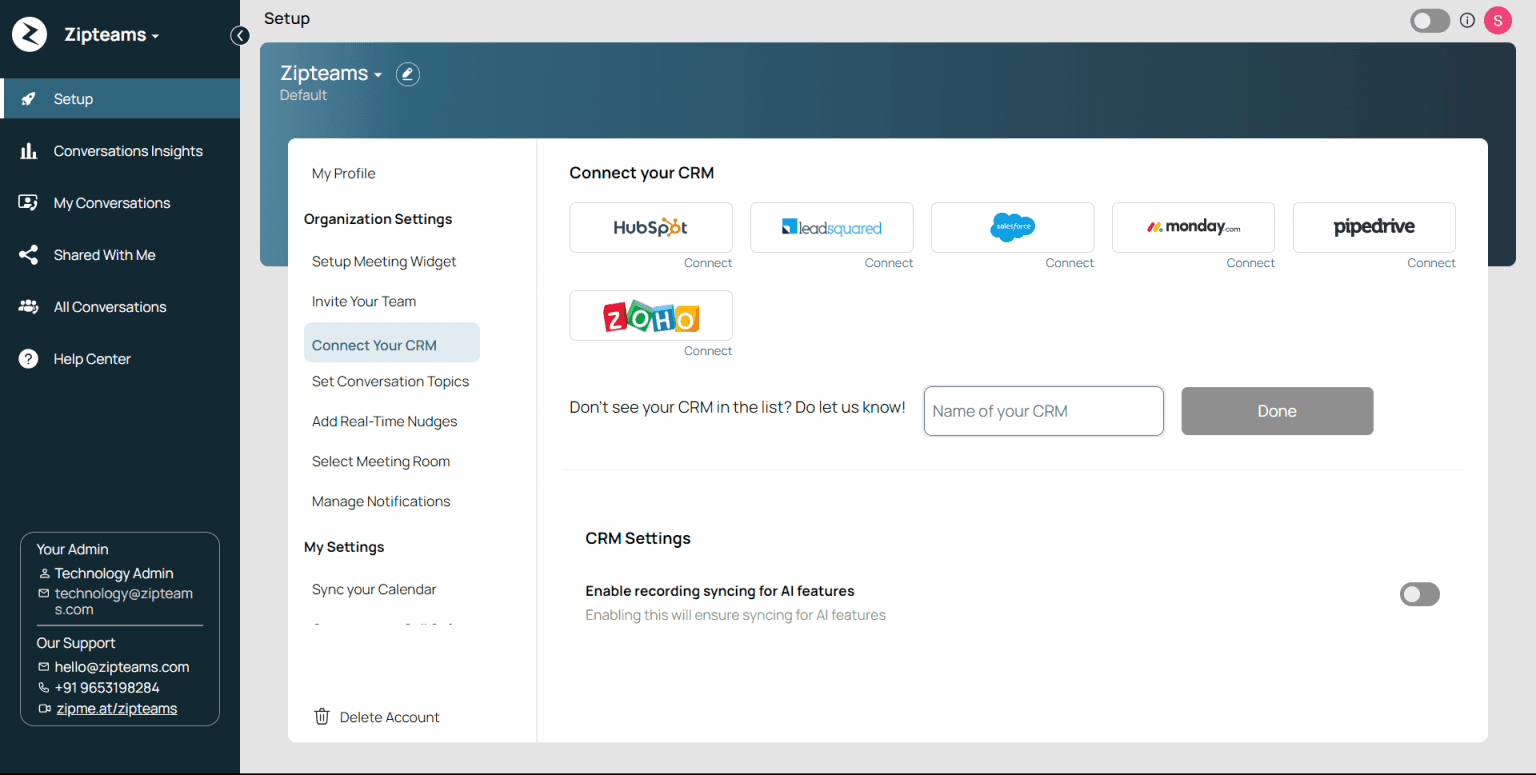
2. Locate the ‘LeadSquared’ logo on your screen and tap ‘Connect’.
3. A pop-up will appear on your screen. Click on ‘Connect’
4. Choose the LeadSquared CRM account you want to integrate/sync with Zipteams and then tap ‘Connect’.
5. Click on the link on the popup to get your LeadSquared Access Key and Secret Key and them here. Click on Connect
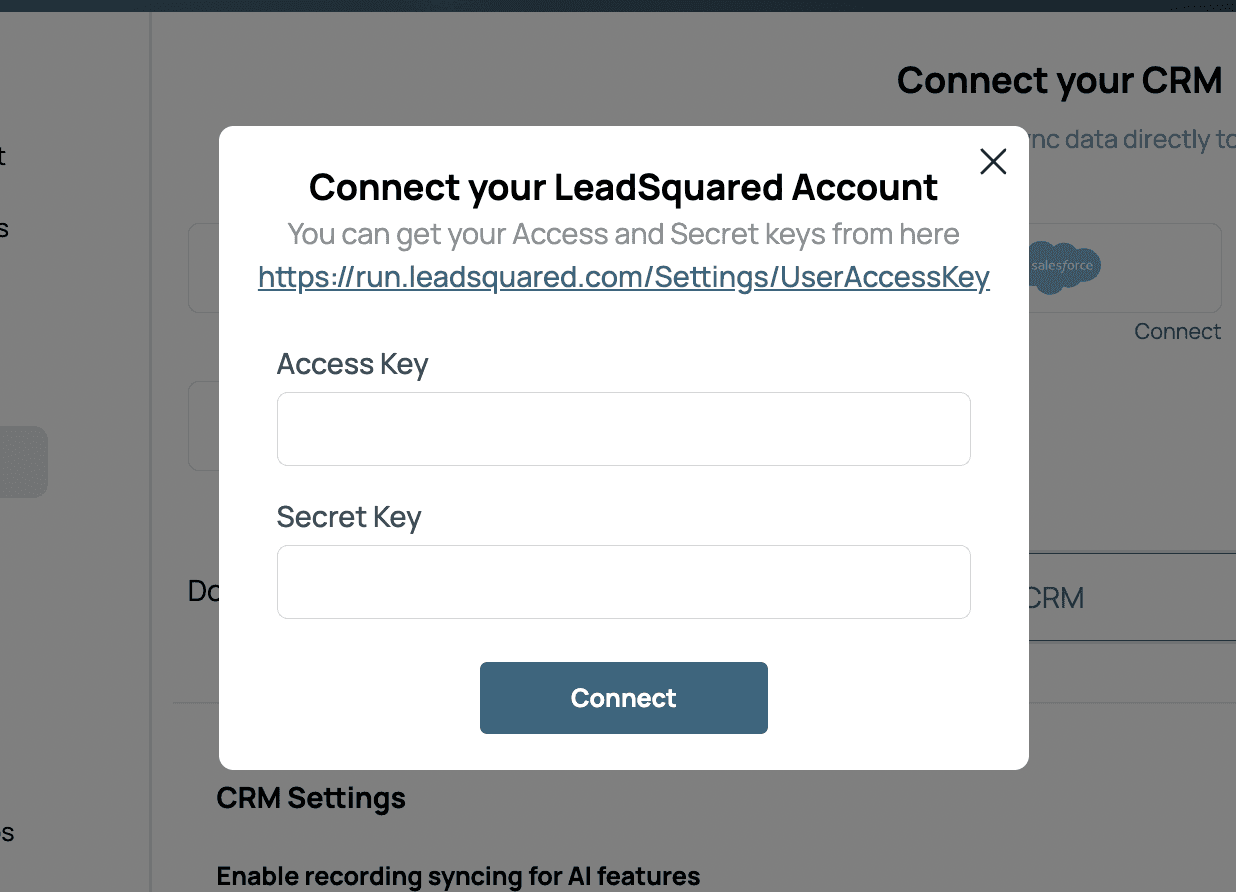
6. You should see your LeadSquared account connected. Thats’ it, now all users in your LeadSquared account will be connected.
Section 2 – Syncing Zipteams Notes & Activity into LeadSquared
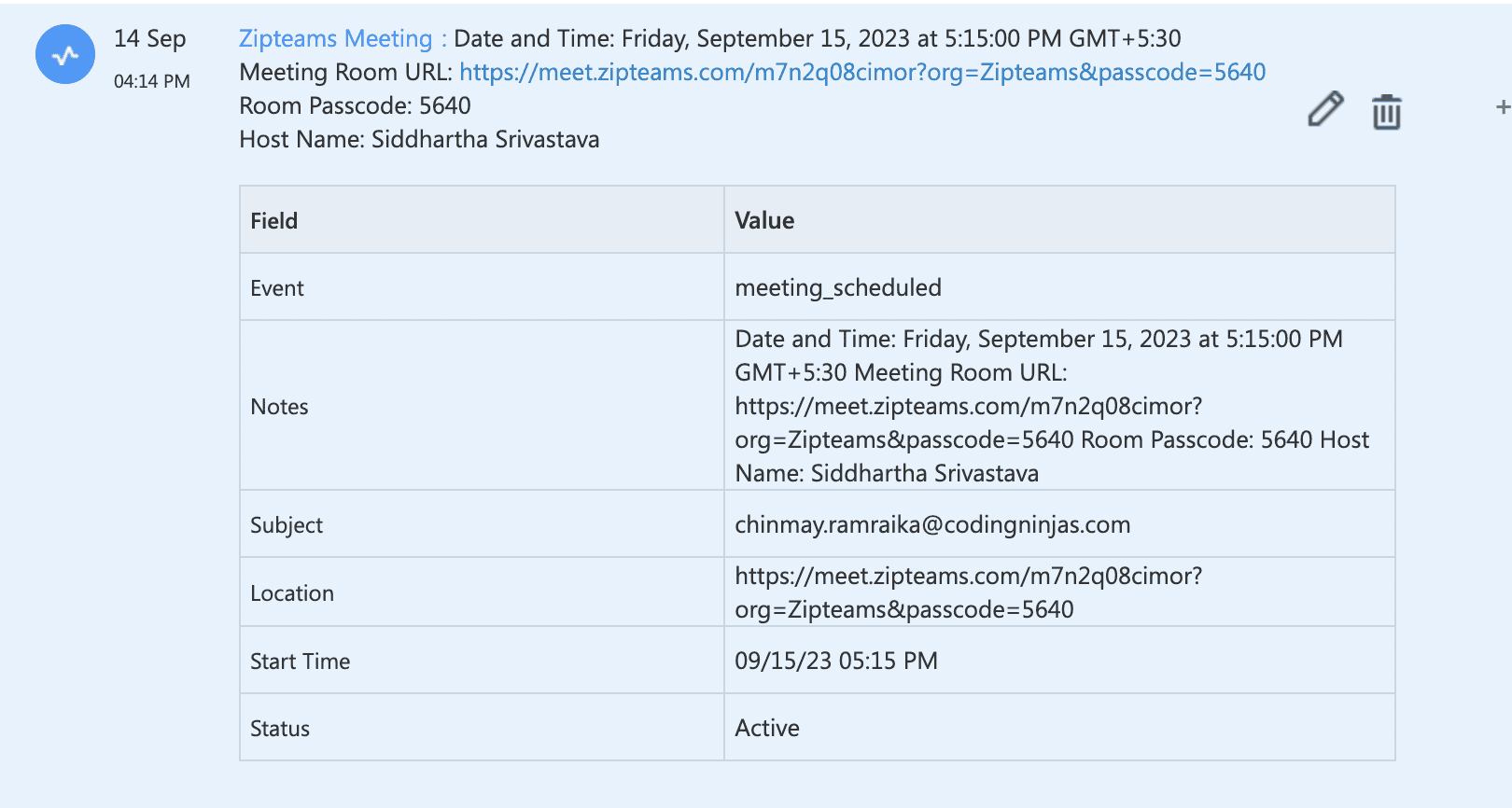
For syncing Zipteams instant and scheduled meeting details LeadSquared, please follow the steps below to create custom activity in LeadSquared. Please note this creates a activity “Zipteams Meeting” against a lead in LeadSquared when a meeting is scheduled on Zipteams. You will need to have admin account on LeadSquared to set this.
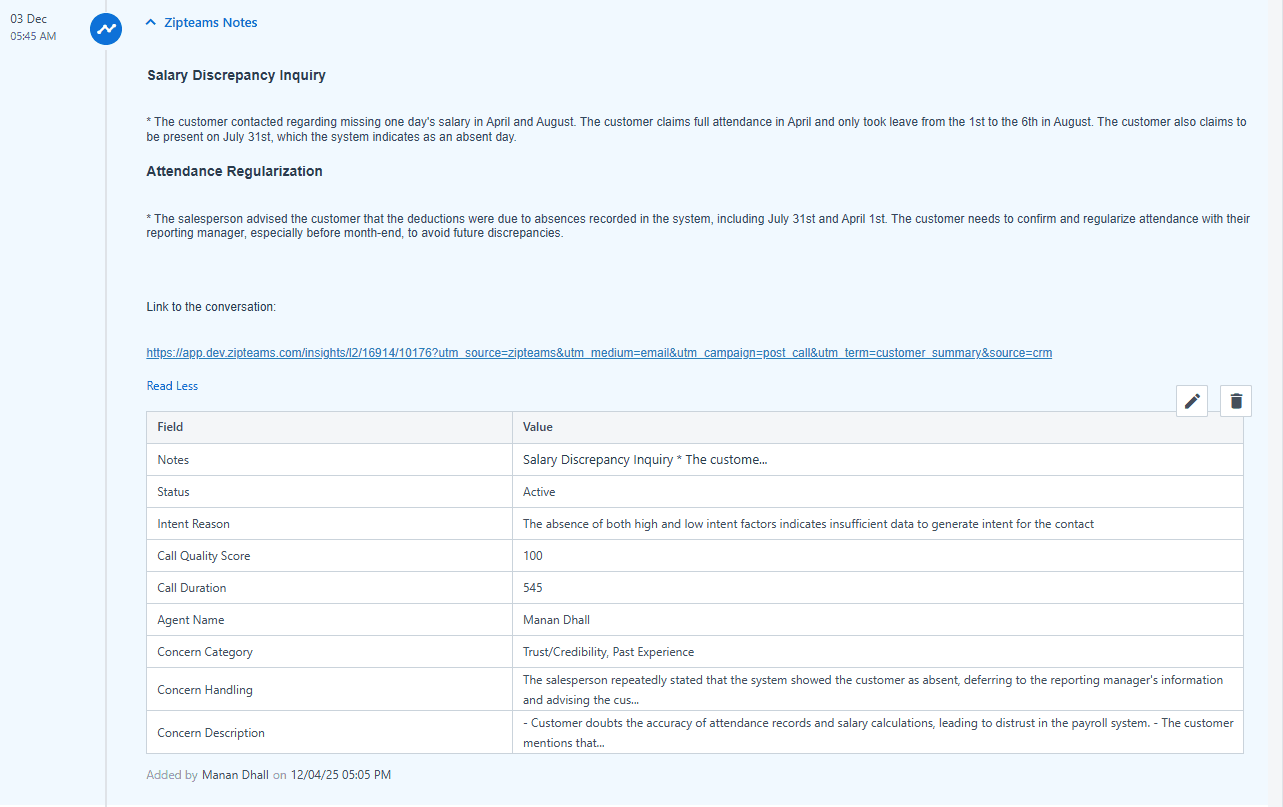
1. Two new custom activities will be created 'Zipteams Notes' and 'Zipteams Activity'.
Zipteams Notes - Will contain the call summary after the call has completed processing on Zipteams.
Zipteams Activity - Will contain meeting schedule details if you are using the meeting widget on Zipteams.
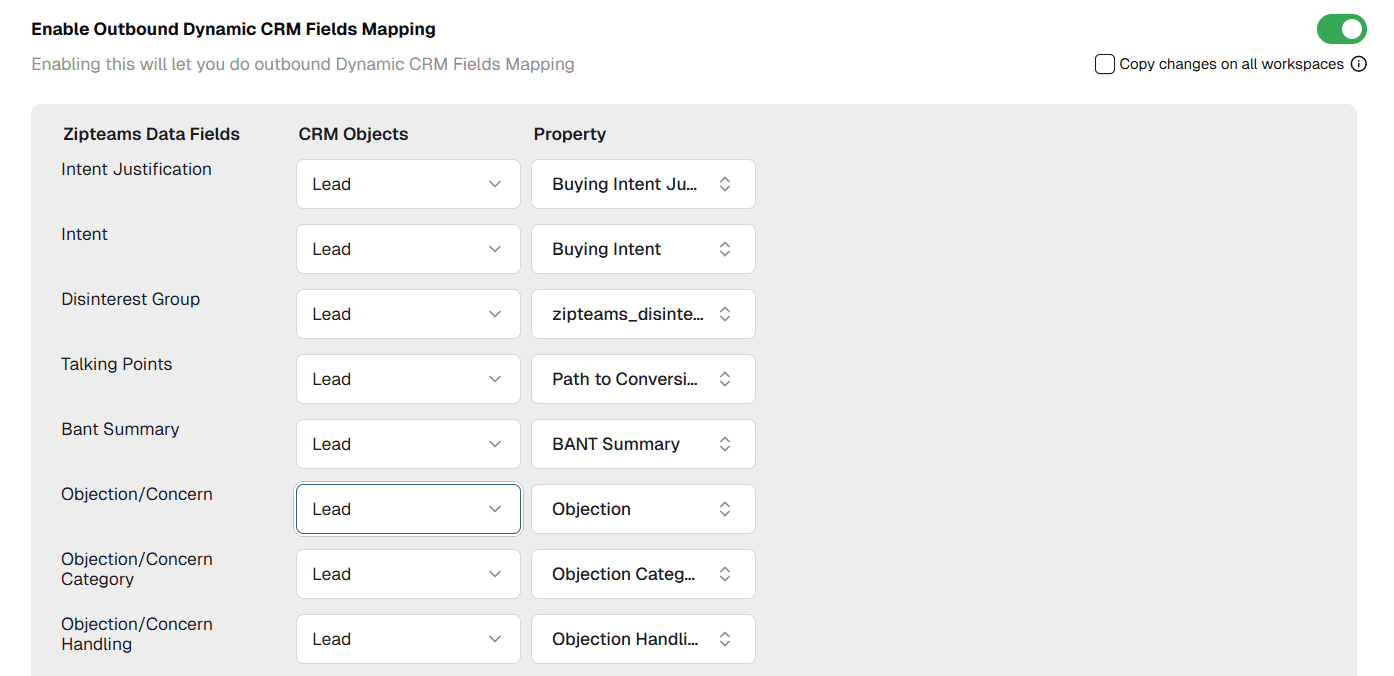
2. To sync additional data back to LSQ once the call is processed. Please configure these fields:-
Intent Justification - Long Text Field(1000 character limit)
Intent - Short Text Dropdown Field with these values to be created(INTERESTED, HIGH, LOW, NEUTRAL, MODERATE, NOT_QUALIFIED, NOT_AVAILABLE, NA)
Disinterest Group - short text field
Talking Points - Long Text Field(1000 character limit)
Bant Summary - Long Text Field(1000 character limit)
Objection/Concern - Long Text Field(1000 character limit)
Objection/Concern Category - Long Text Field(1000 character limit)
Objection/Concern Handling - Long Text Field(1000 character limit)
Budget - Long Text Field(1000 character limit)
Authority - Long Text Field(1000 character limit)
Needs - Long Text Field(1000 character limit)
Timeline - Long Text Field(1000 character limit)
Competitors Mentioned - Long Text Field(1000 character limit)
Customer Involvement - Number
Call Quality Score - Number
Intent Score - Number
AI Disposition Status - Short text field
Qualification fields/questions (customizable) - Long Text Field(1000 character limit)
Section 3 – Other Configuration Settings
For other configuration settings, Go to Setup > Set your Organization > Connect your CRM.
If you use Opportunity flow on Leadsquared and want to sync crm status from Opportunity stage/status fields. Please enable 'Opportunity Level Syncing' flag on Zipteams.

Choose opportunity and click on Apply to sync.
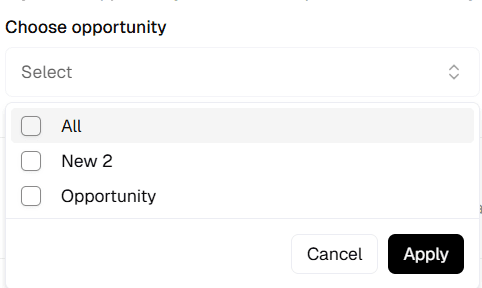
Note: If in future you add any further Opportunities in your LSQ account. You need to again toggle this flag and also select the new opportunities you created here.
To start creating followup tasks on LeadSquared, enable 'LeadSquared Task Creation' flag on Zipteams.

To start creating new users created on Leadsquared on Zipteams in the Default Workspace, enable 'LeadSquared User Creation Flow' flag on Zipteams.

To start marking users active/inactive on Zipteams when marked active/inactive on Leadsquared, enable 'LeadSquared User Activation Flow' flag on Zipteams.

To send processed call analysis results from Zipteams back to your CRM automatically after each call, enable 'Sync Analysis to CRM' flag on Zipteams.

For calls ingested via APIs (outside standard CRM integrations), Zipteams will fetch lead details and the latest disposition from your CRM to process the call. For using this feature, enable 'Fetch Lead Details from CRM on External Calls' flag on Zipteams.

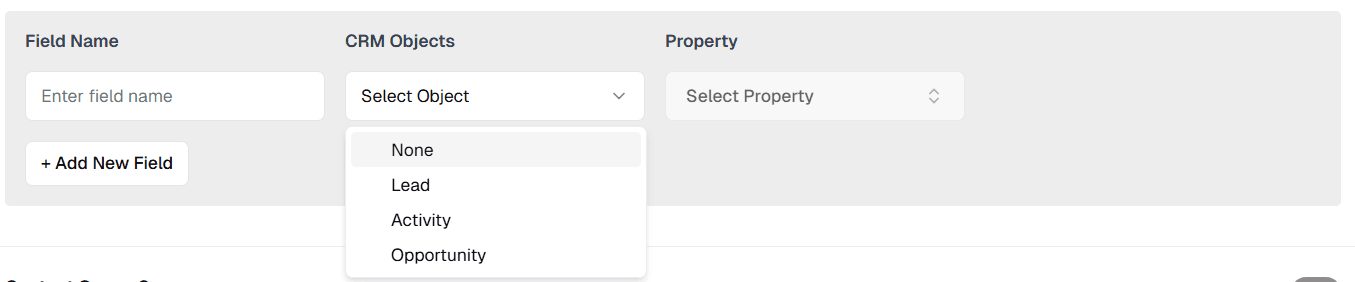
If you want to sync some extra data from LSQ to Zipteams, use inbound dynamic form. Enable the 'Inbound Dynamic CRM Fields Mapping' flag on Zipteams.

Select CRM objects and Property to start syncing.
Section 4 – Add Zipteams Dashboard as an IFrame onto LeadSquared
For other configuration settings, Go to Setup > Set your Organization > Connect your CRM.
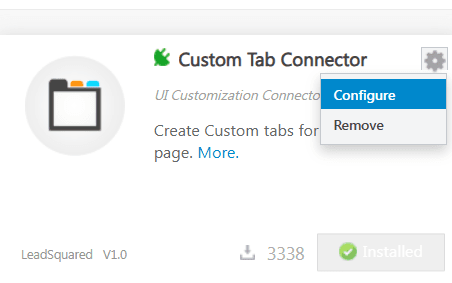
Go to Apps > Apps Marketplace > Install 'Custom Tab Connector' App
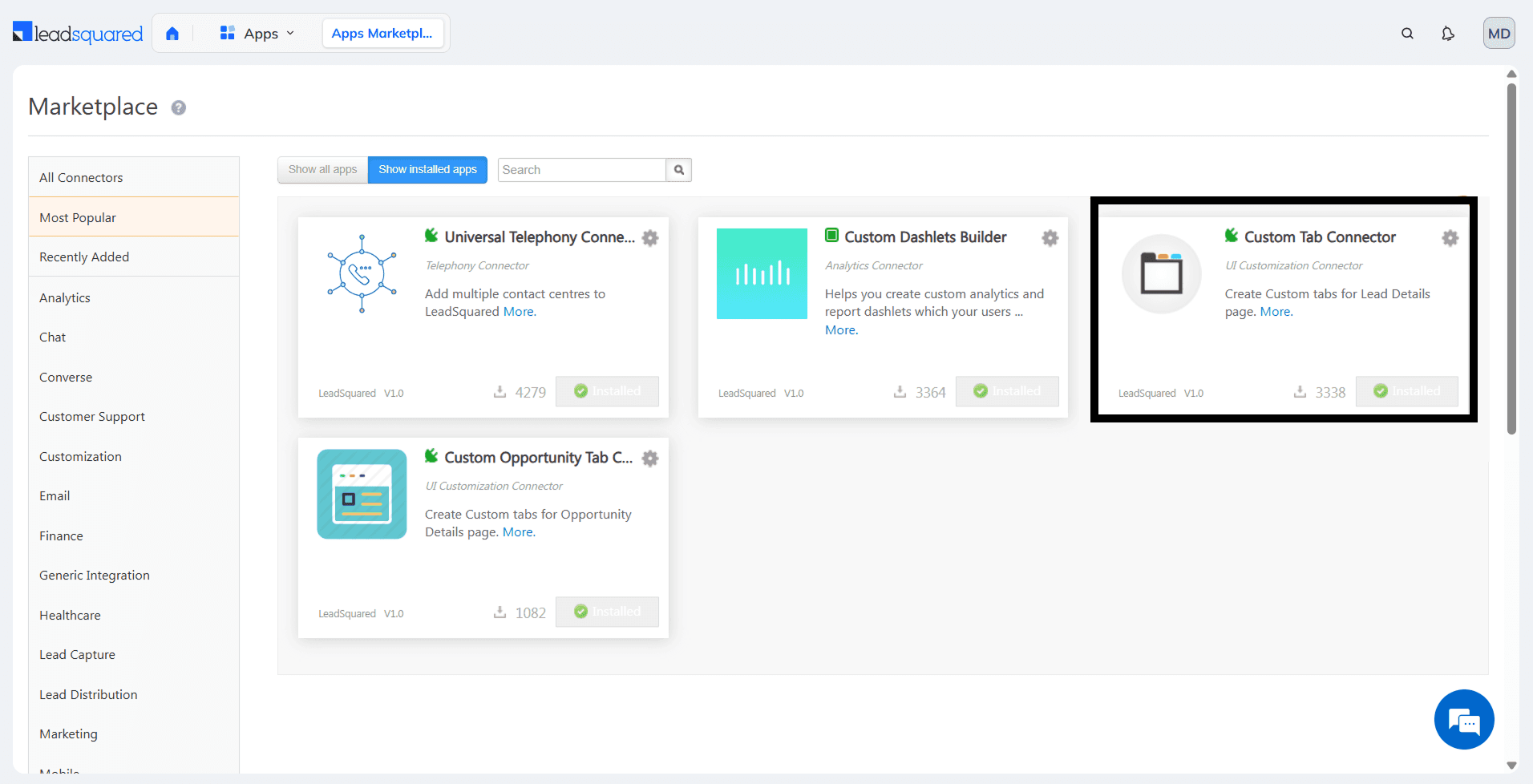
Click on the settings button at the top right and click on 'configure'.
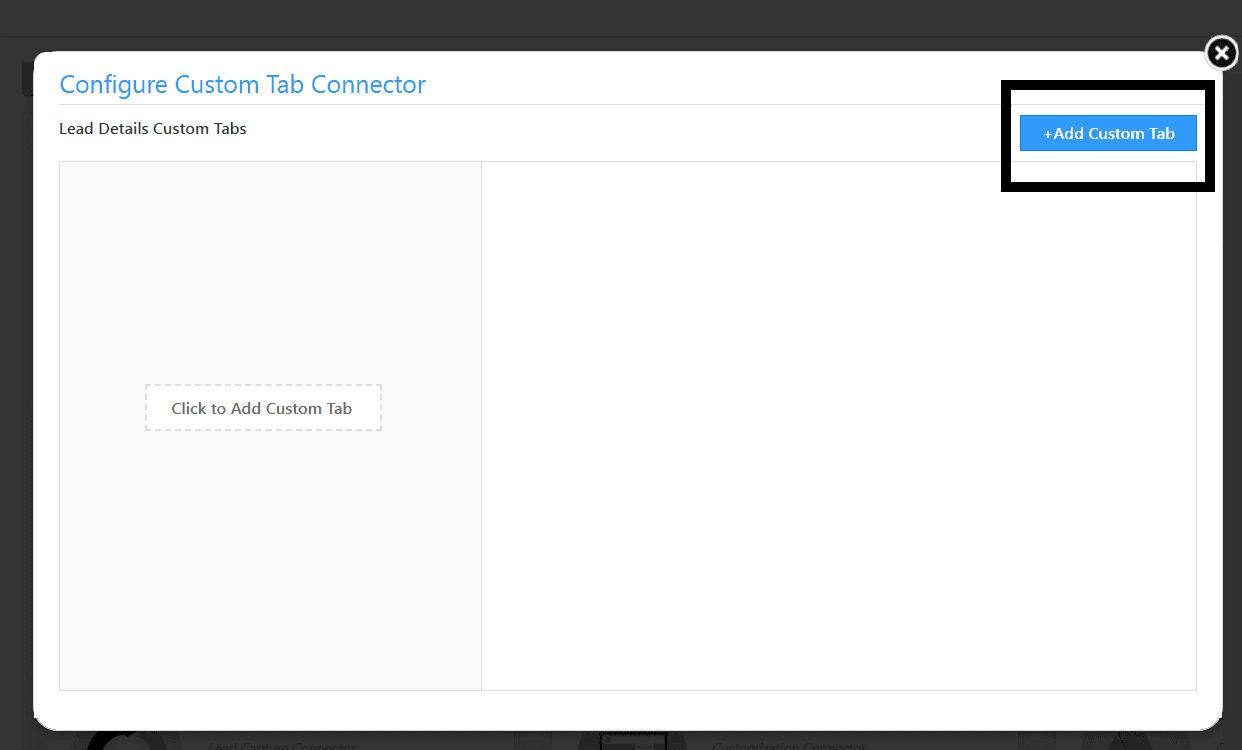
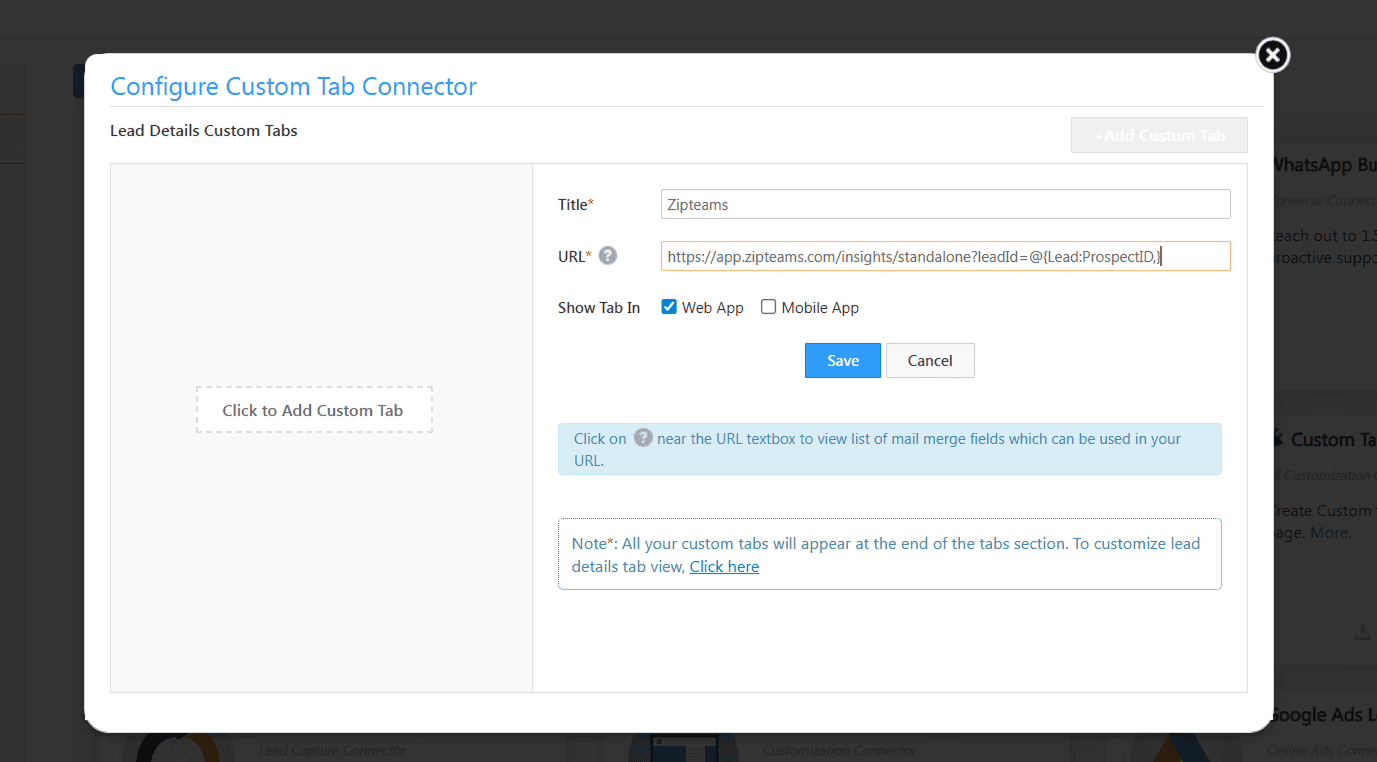
Click on 'Add Custom Tab' Button. After this enter the following Details in the form that appears and then click on 'save'.
Title:-Zipteams
URL:- https://app.zipteams.com/insights/standalone?leadId=@{Lead:ProspectID,}
Add the newly created tab to your Lead Details View.
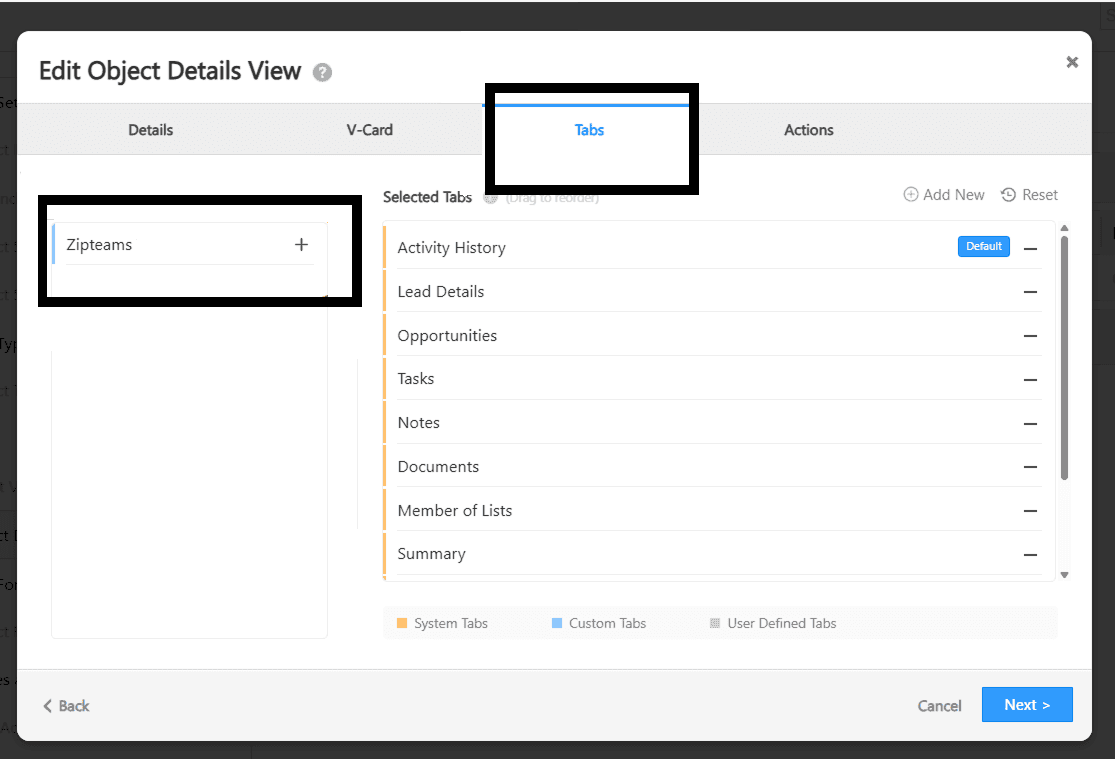
Go to Settings > Leads/Objects > Leads/Objects Detail View> Click on the settings button under the actions column on the right hand side of the view you want to add this tab to .
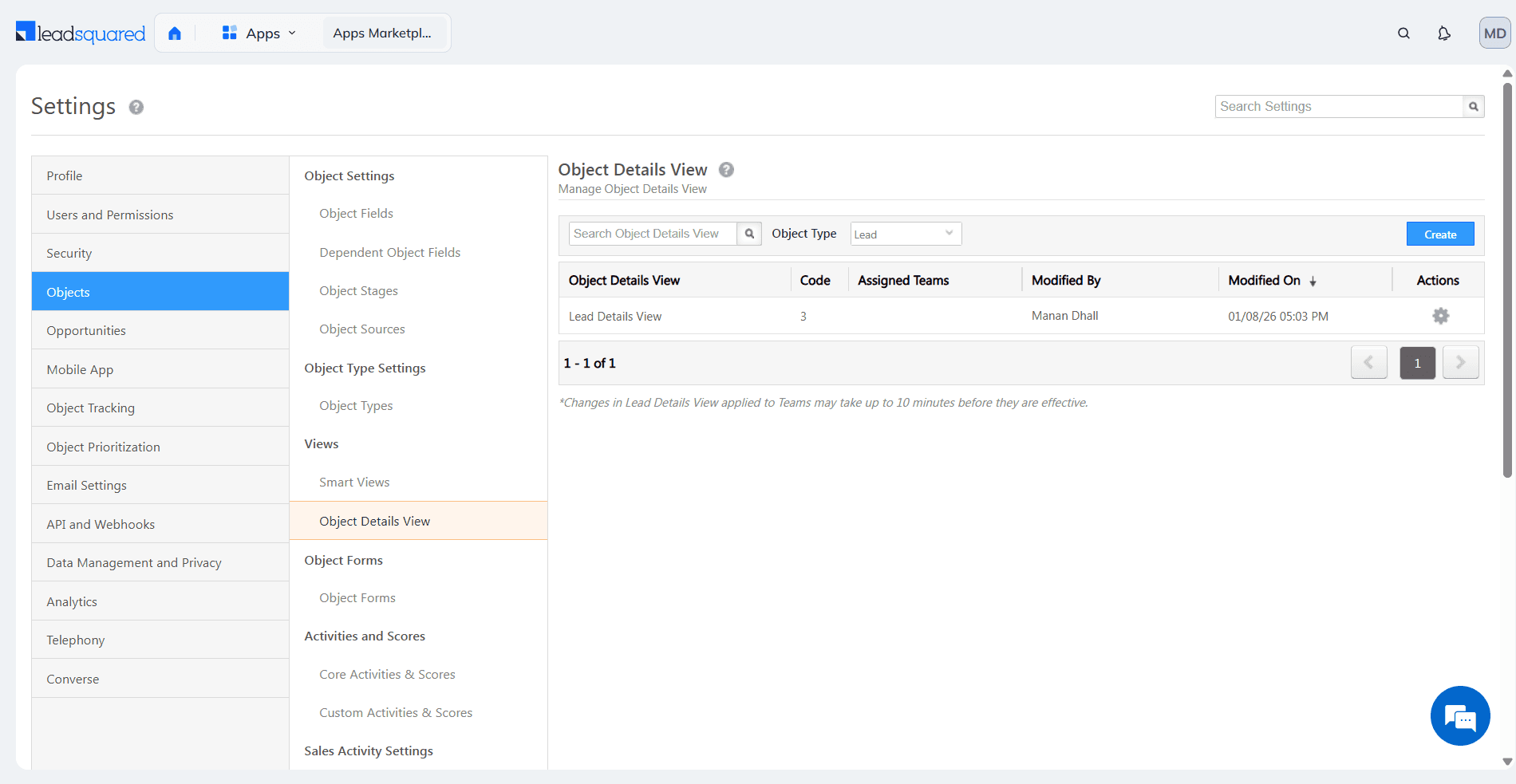
Click on Tabs. Then drag and drop the Zipteams Tab view on the right side according to your preference. Click on next and then click save.
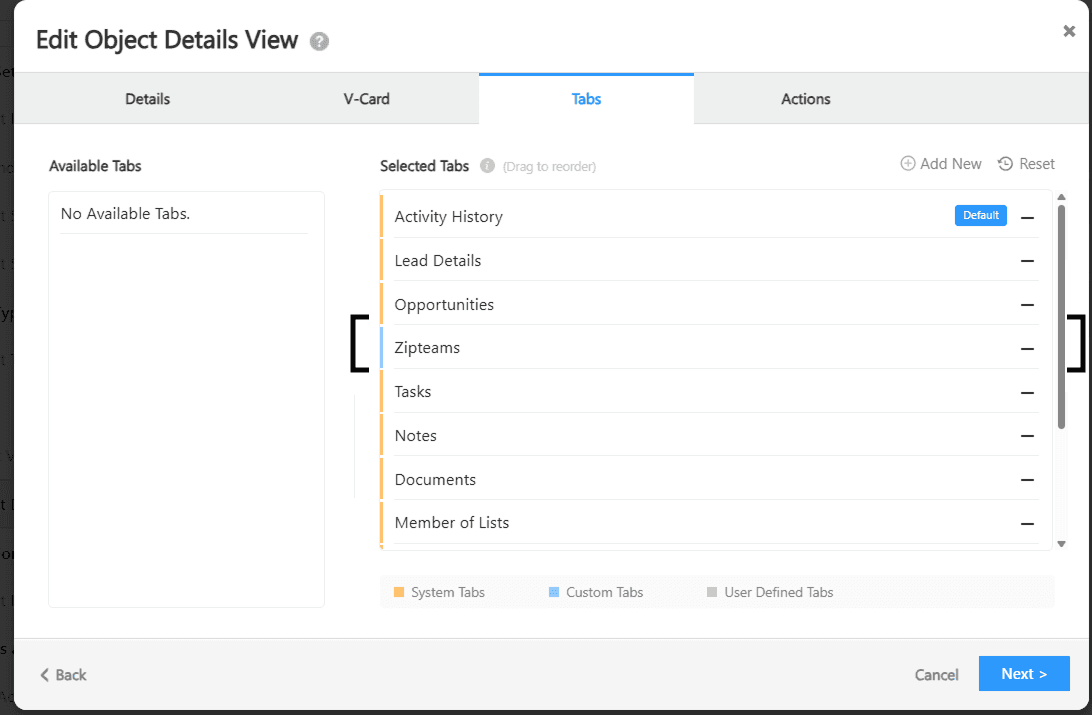
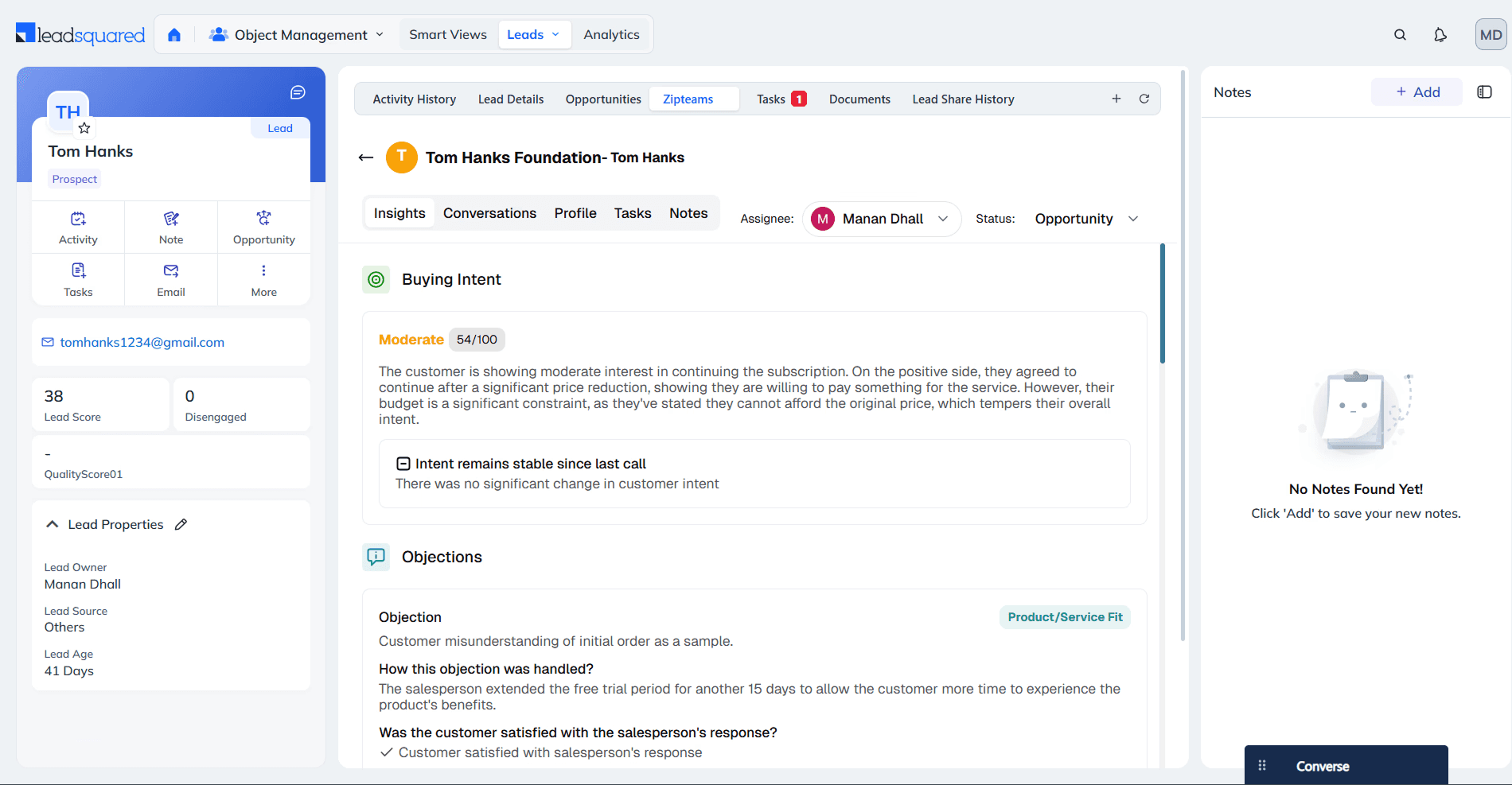
The tab should be visible to your Lead Details view page
Section 5 – Add Zipteams Conversation Insights page in LeadSquared
Go to Settings > Analytics > Dashboards
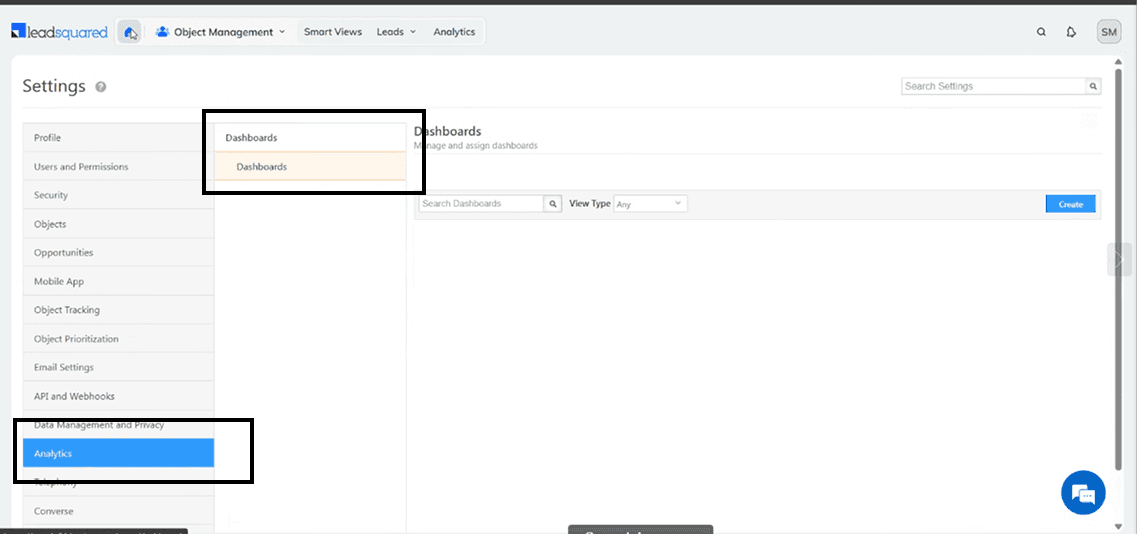
Click on 'Create' button
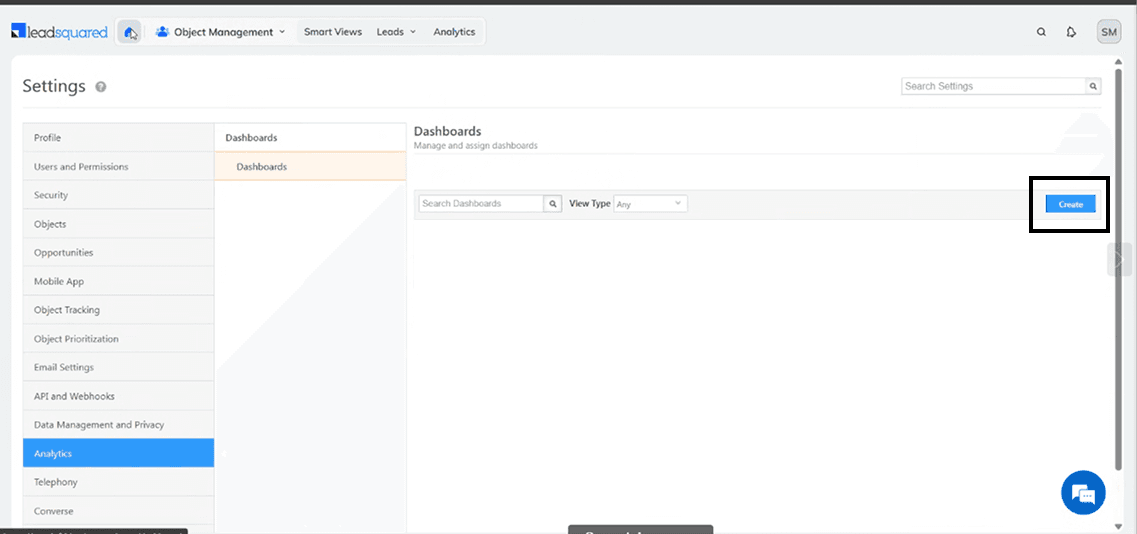
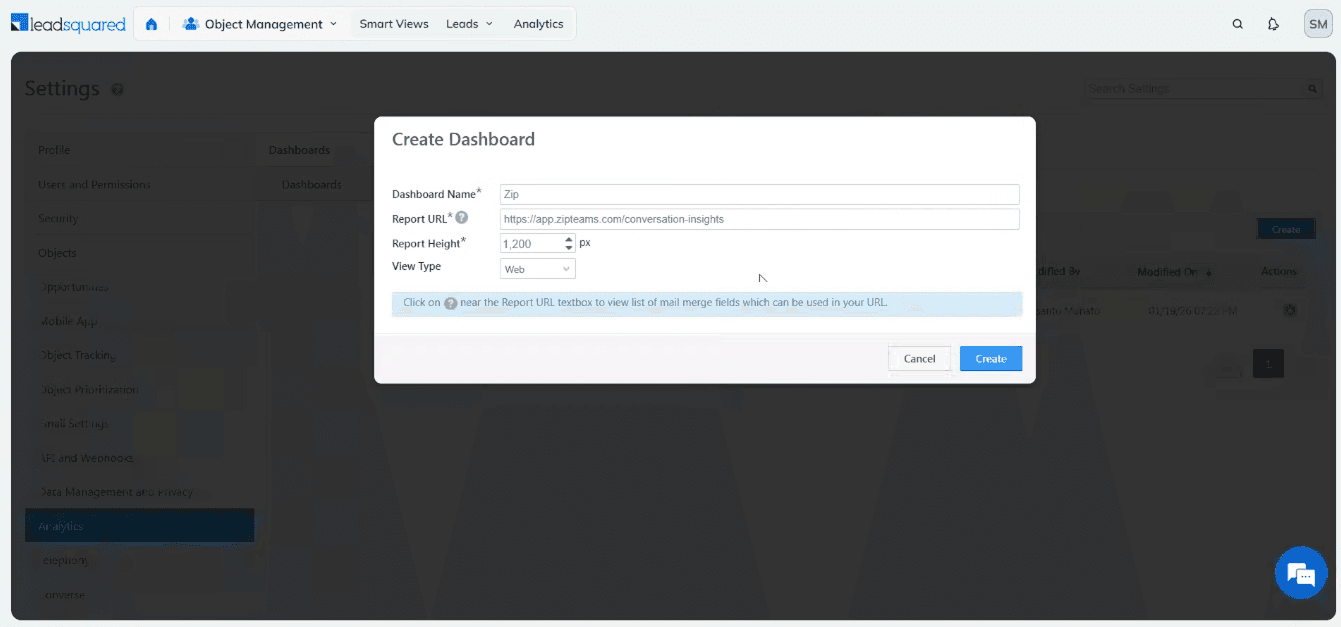
After this, enter the following details in the form that appears and then click 'Create'.
Dashboard Name - Zip
Report URL - https://app.zipteams.com/conversation-insights
Go to Users and Permission > Teams. You can view all your teams here.
Click on the Settings icon of the team to which you want to give this dashboard and then click on 'Apply Dashboard'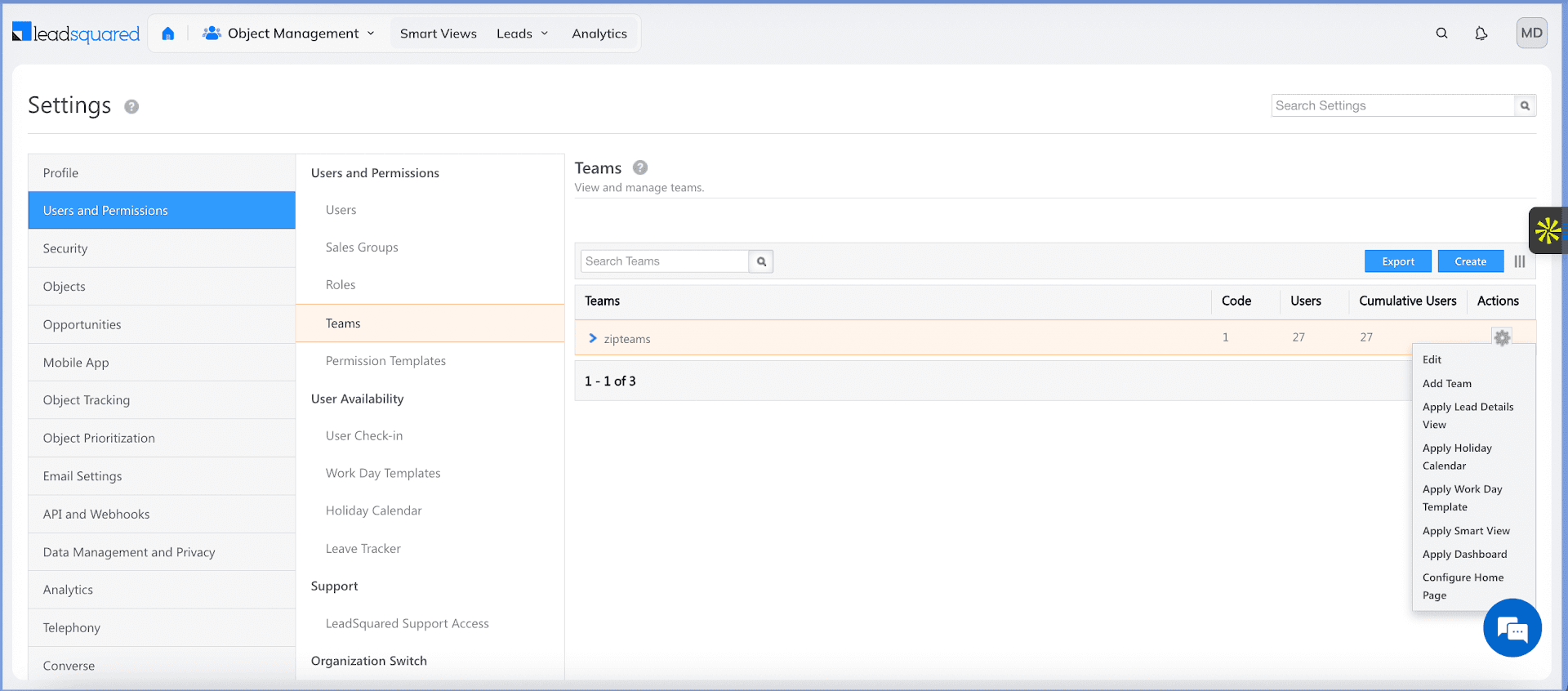
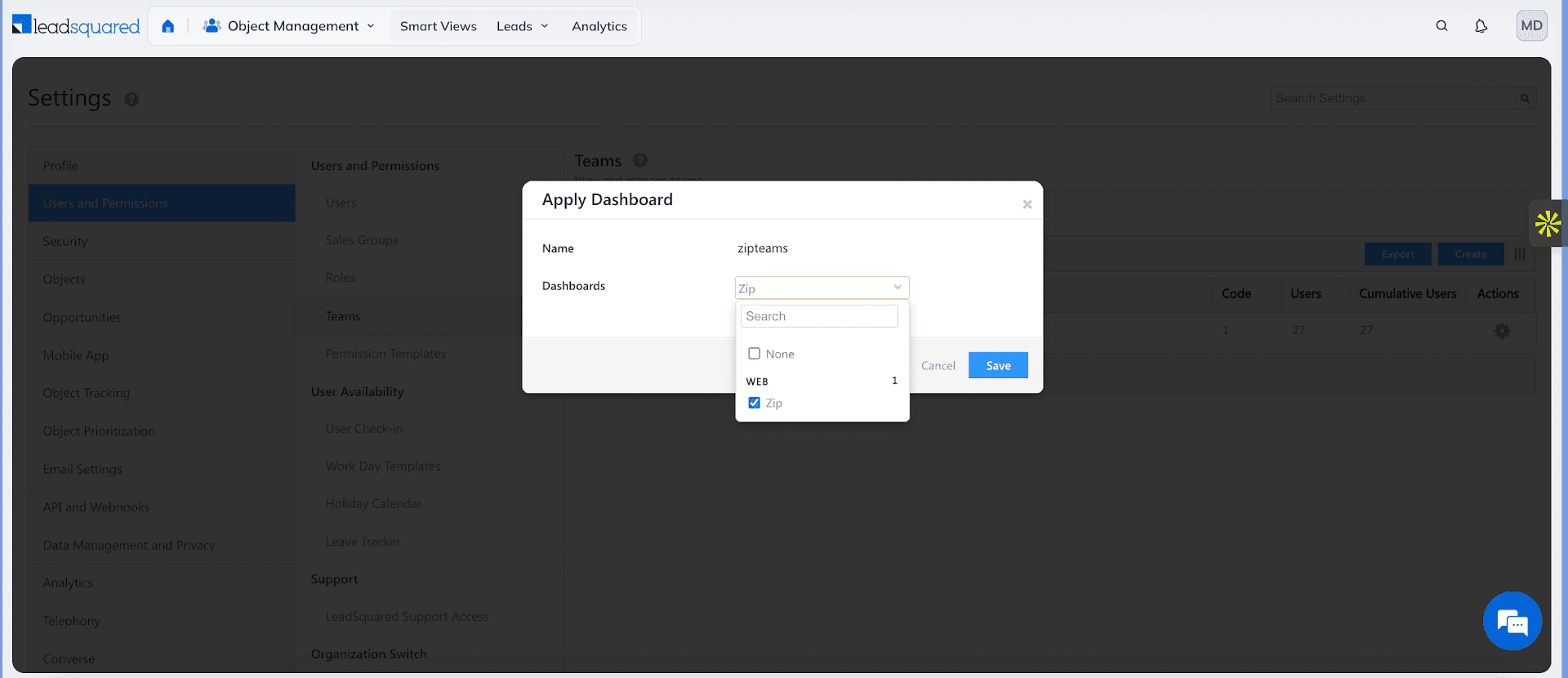
Now, Click on Dashboards and tick the checkbox named as 'Zip' and click on 'Save'
Now, Login to your account from Zipteams Log In page
Reload your Home page on LeadSquared

Everyone who is assigned this dashboard will see data basis their access on Zipteams. So admin will see it for full team, managers will see if for their respective team members and agents will see it for themselves only.Your new Zip Dashboard will now be visible on the Home page of LeadSquared.
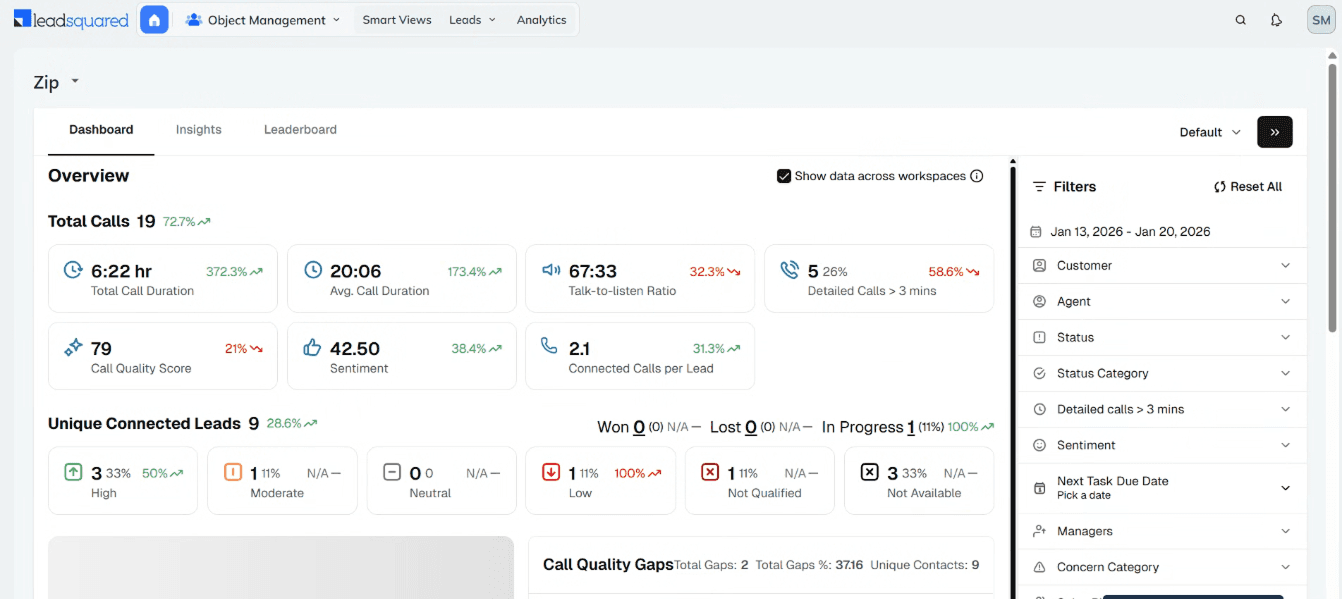
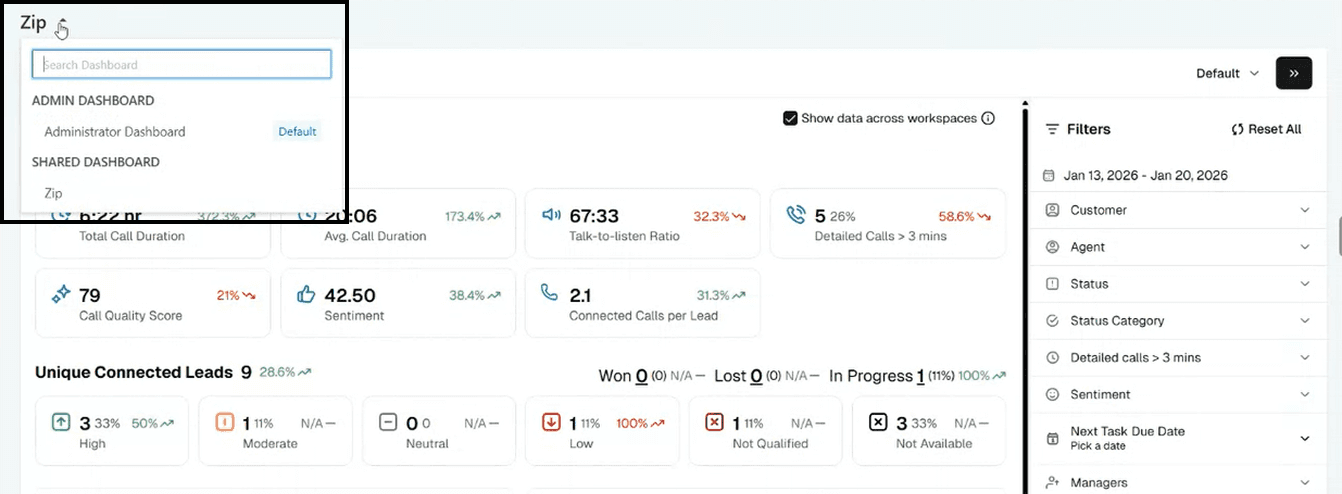
Section 6 – Sync Call Quality Parameters in the Zipteams Notes Activity
To sync Call Quality Parameters in the Zipteams Notes Activity, follow the steps below.
Go to settings page in your LeadSquared account
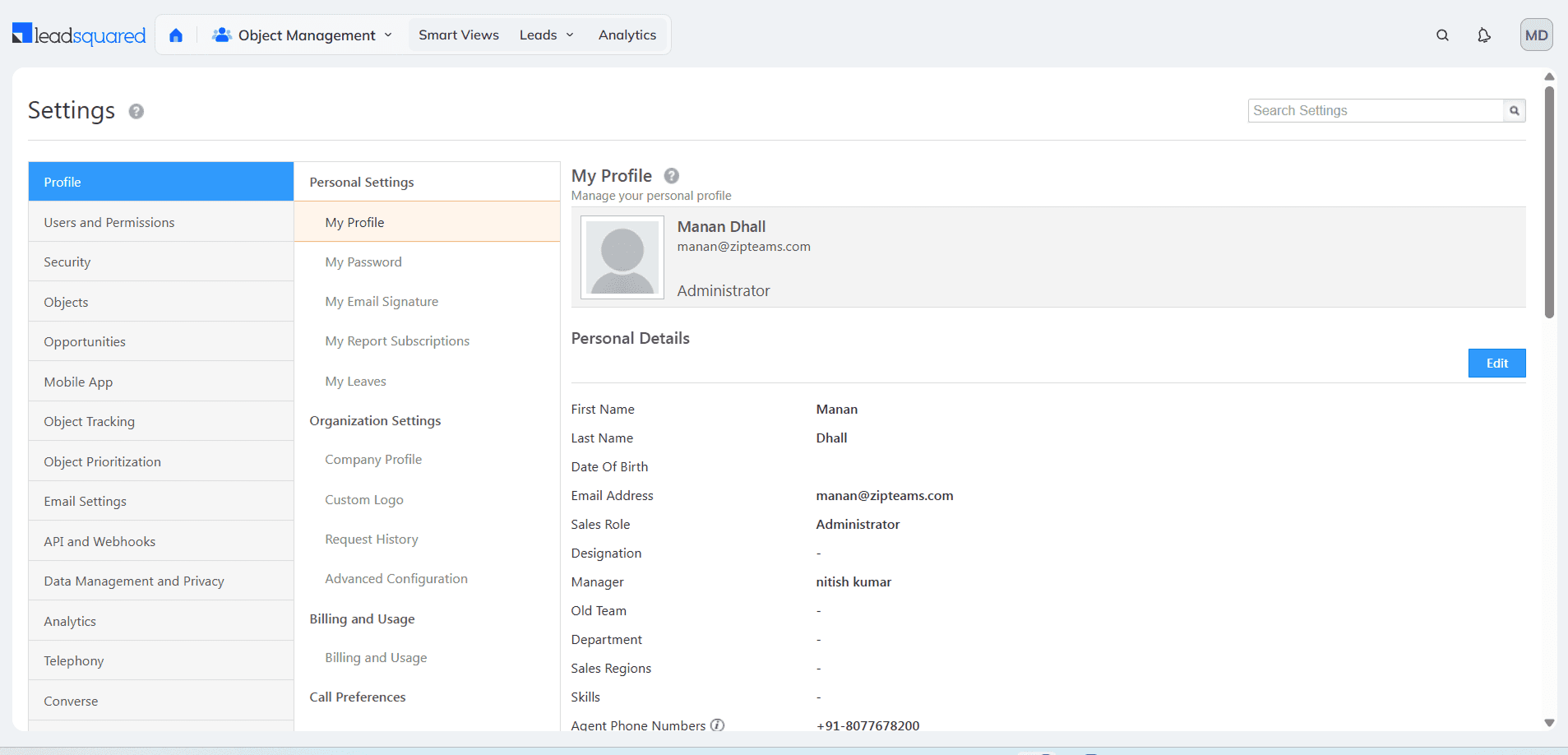
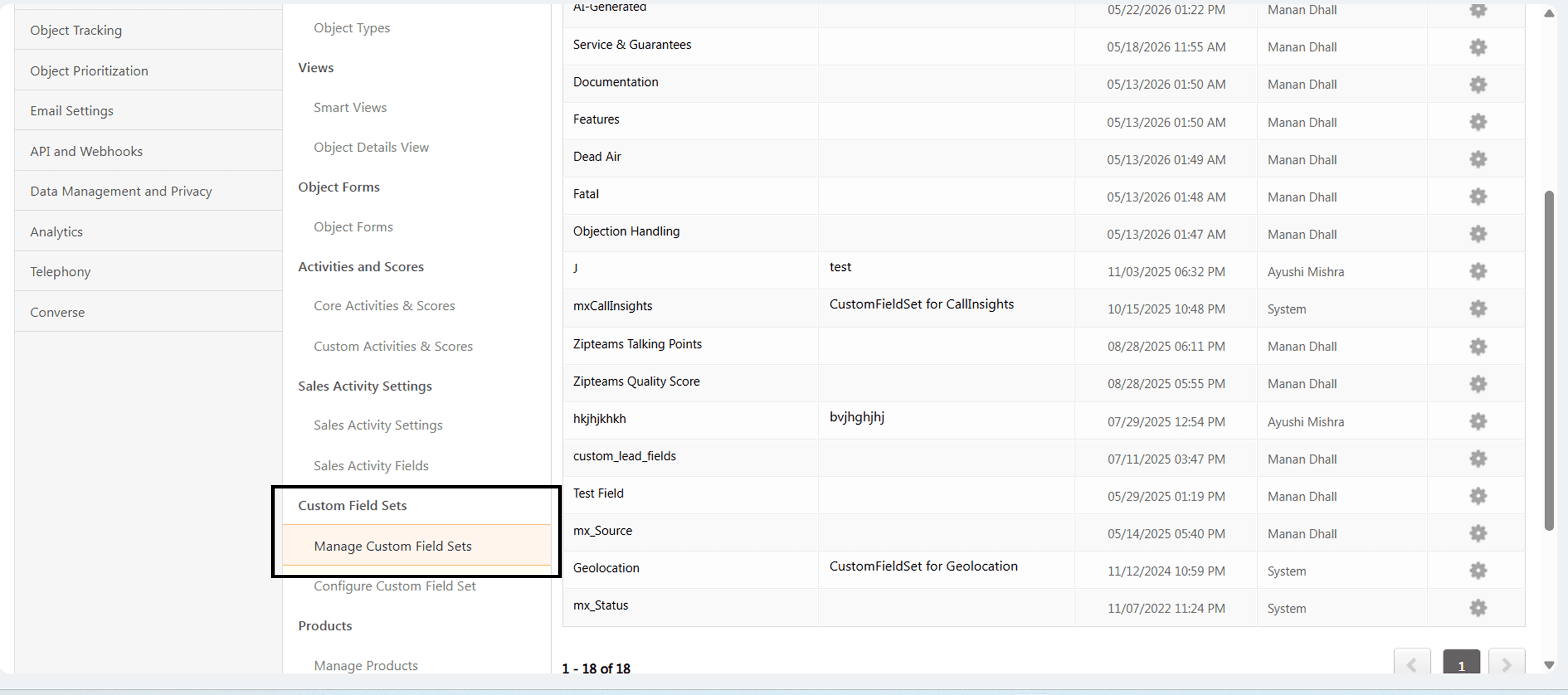
Navigate to Objects → Custom Field Sets and click on Manage Custom Field Sets.
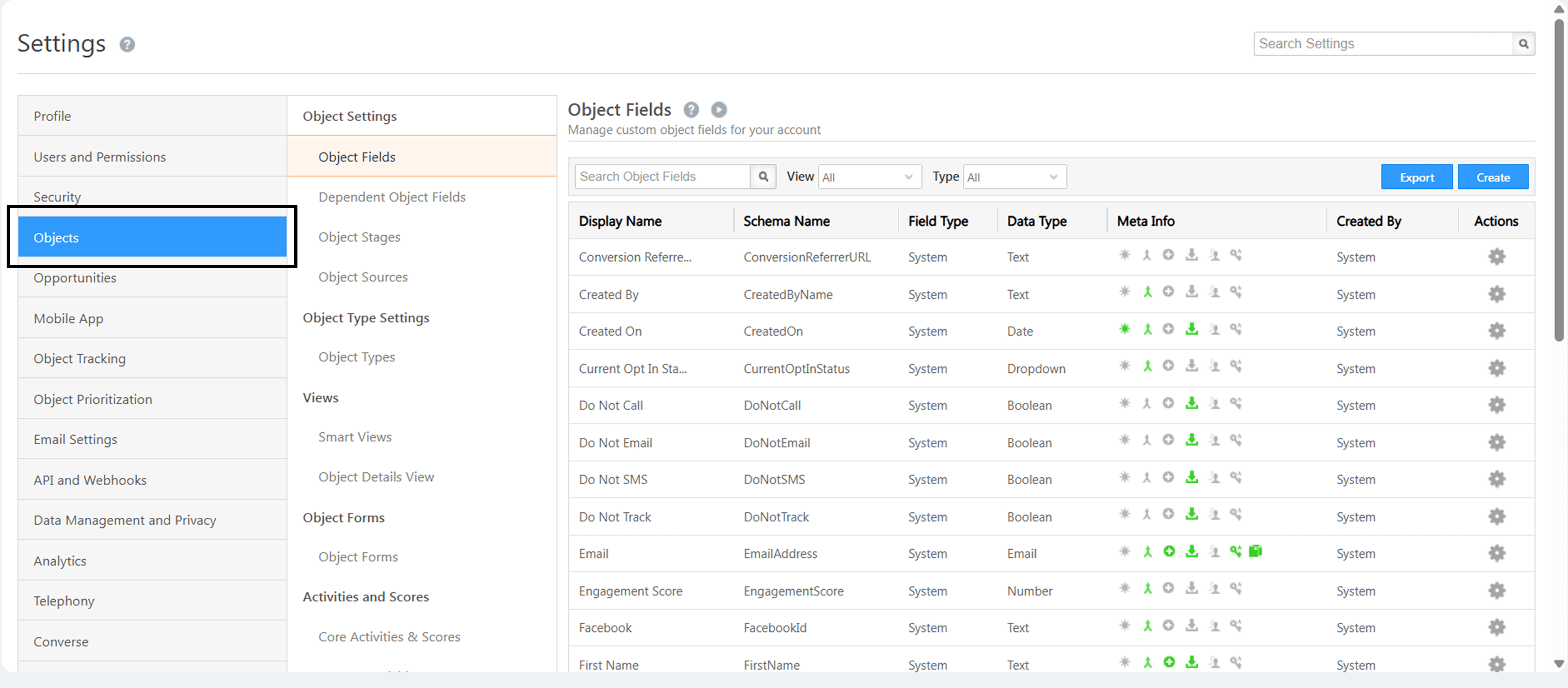
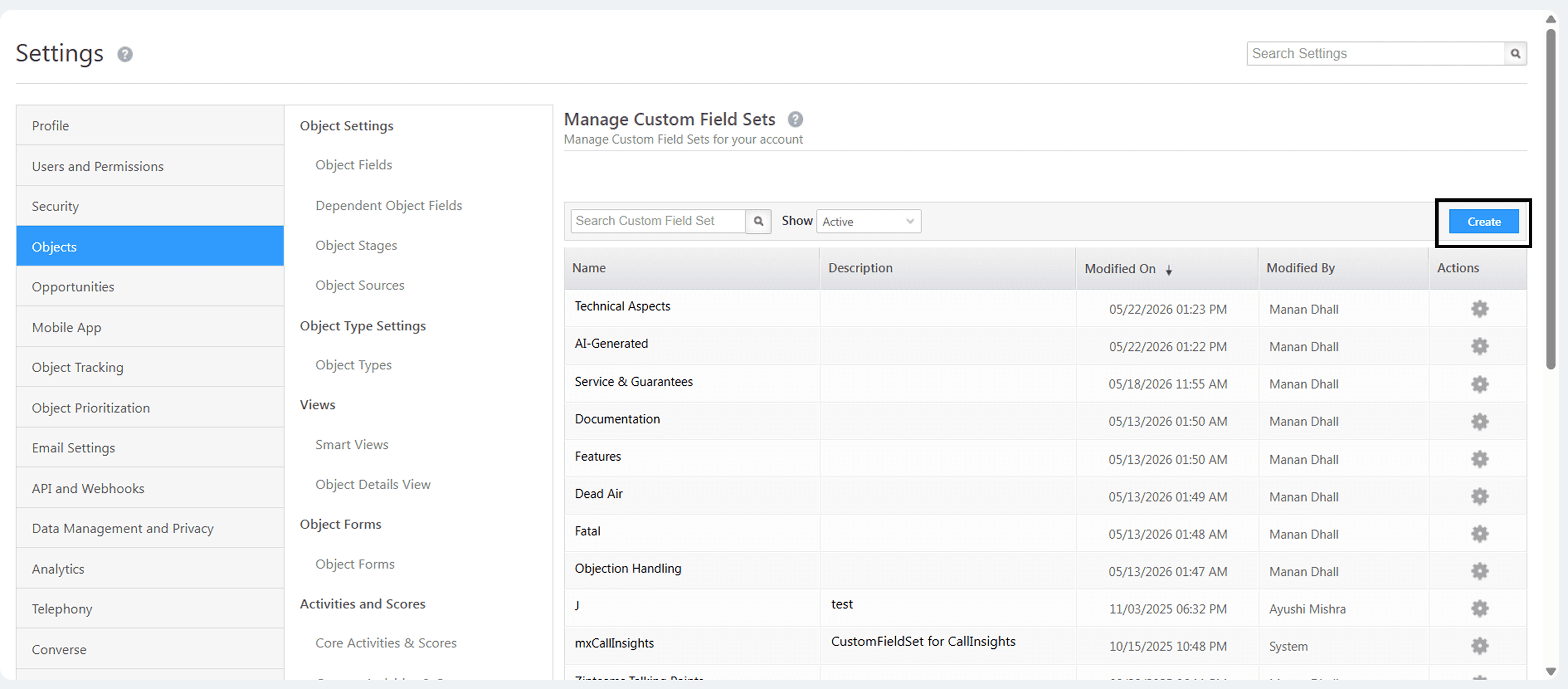
Click on the "Create" button.
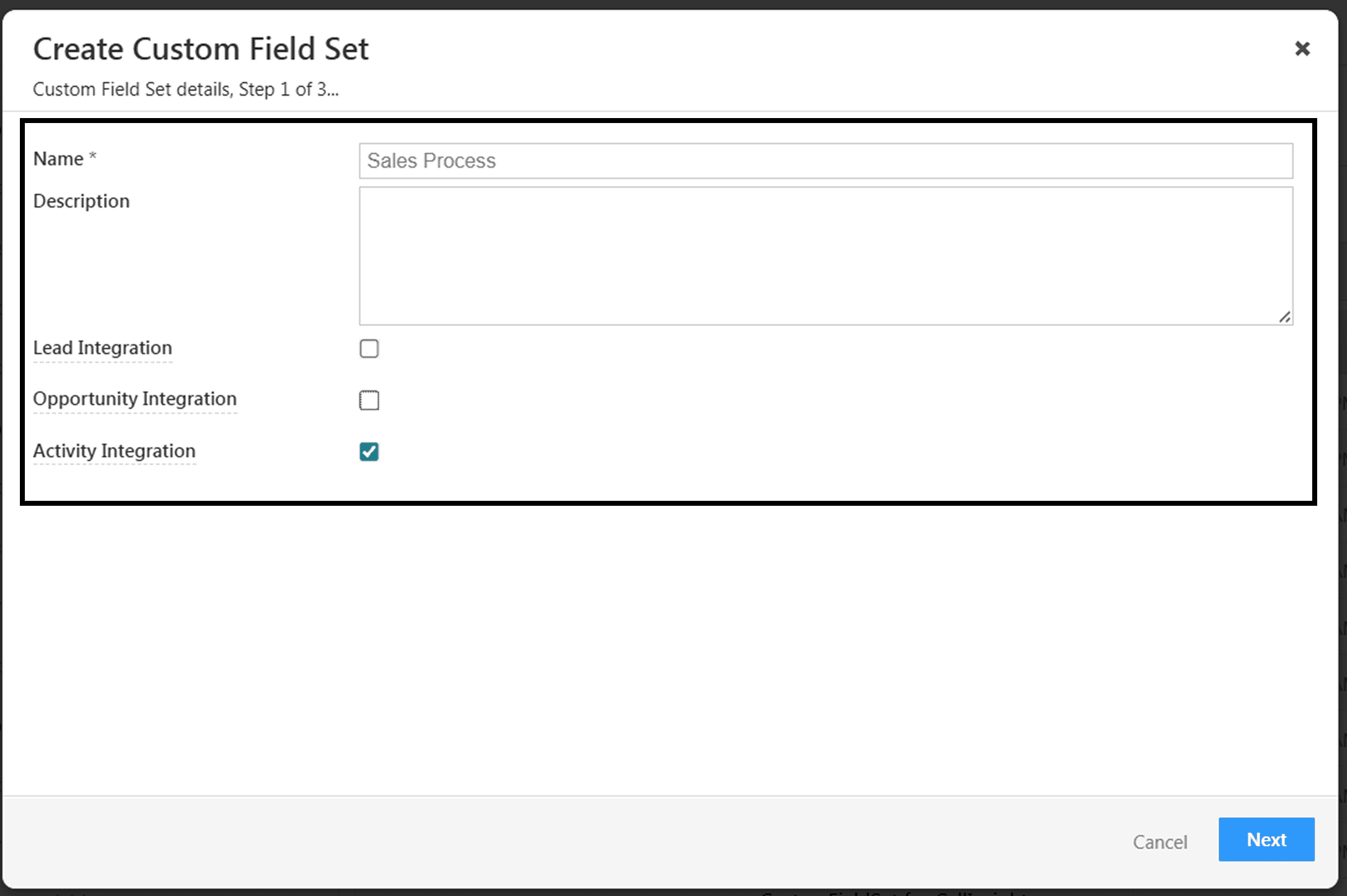
A popup will open for creating custom field set. In the "Name" field enter the exact PARAMETER GROUP name from your Zipteams account in Quality Parameters table and apply check only on Activity Integration option and click "Next".
In the next popup, click on "Add Field"
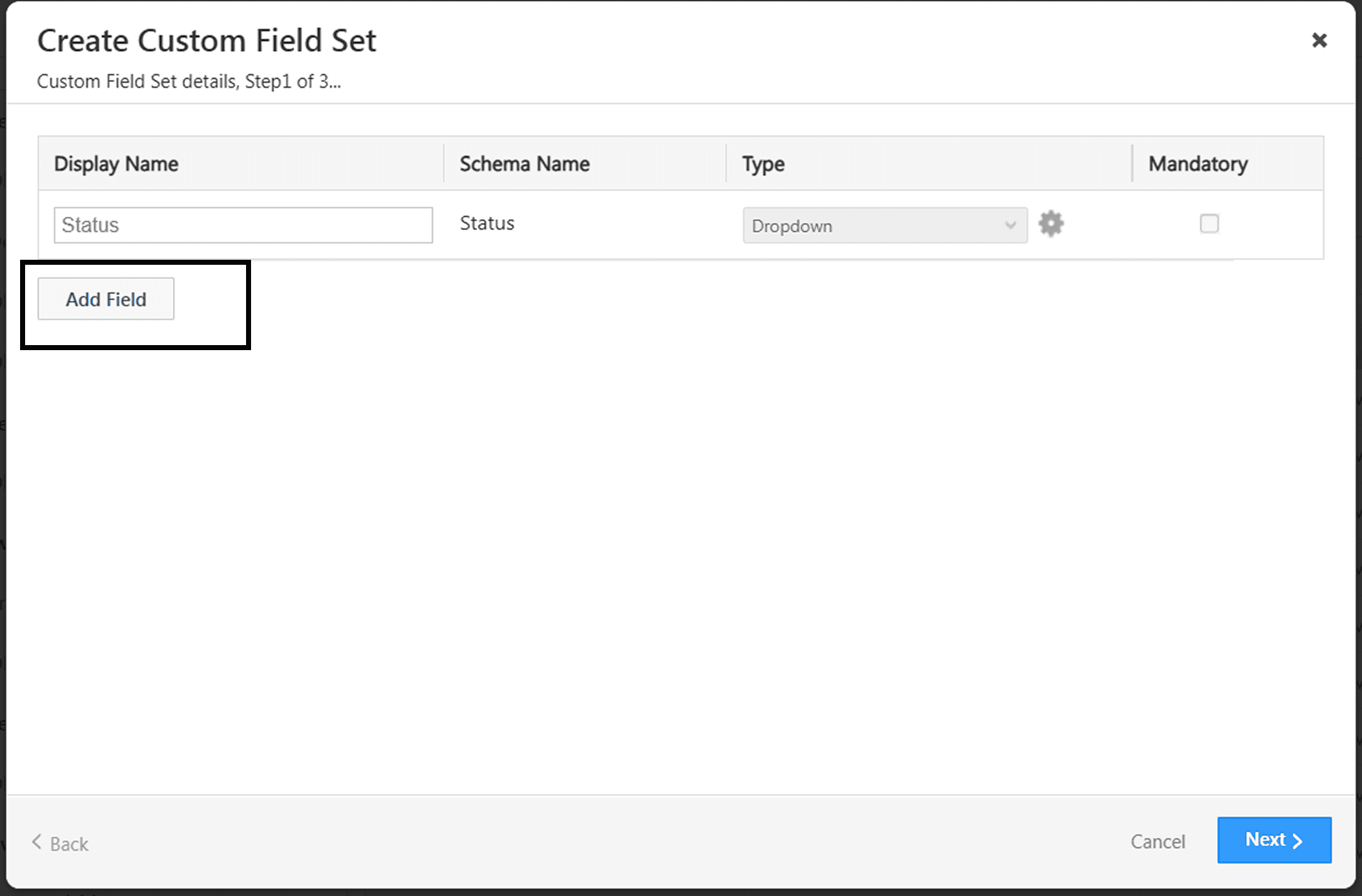
A new field line gets added. Delete the previous first row in the table.
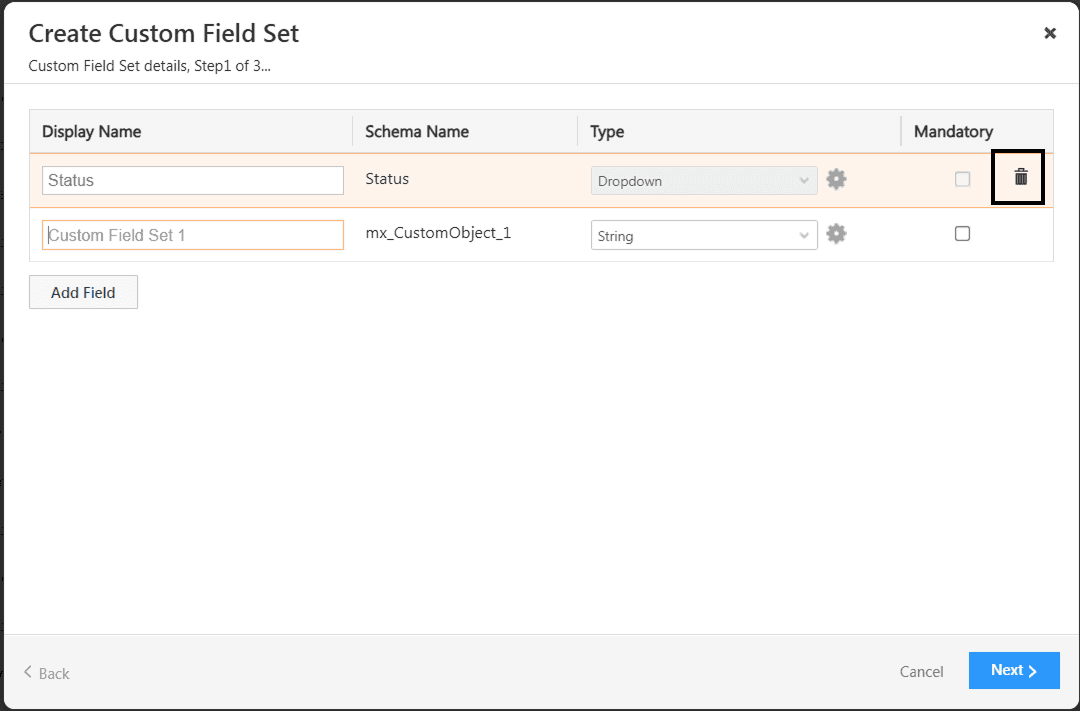
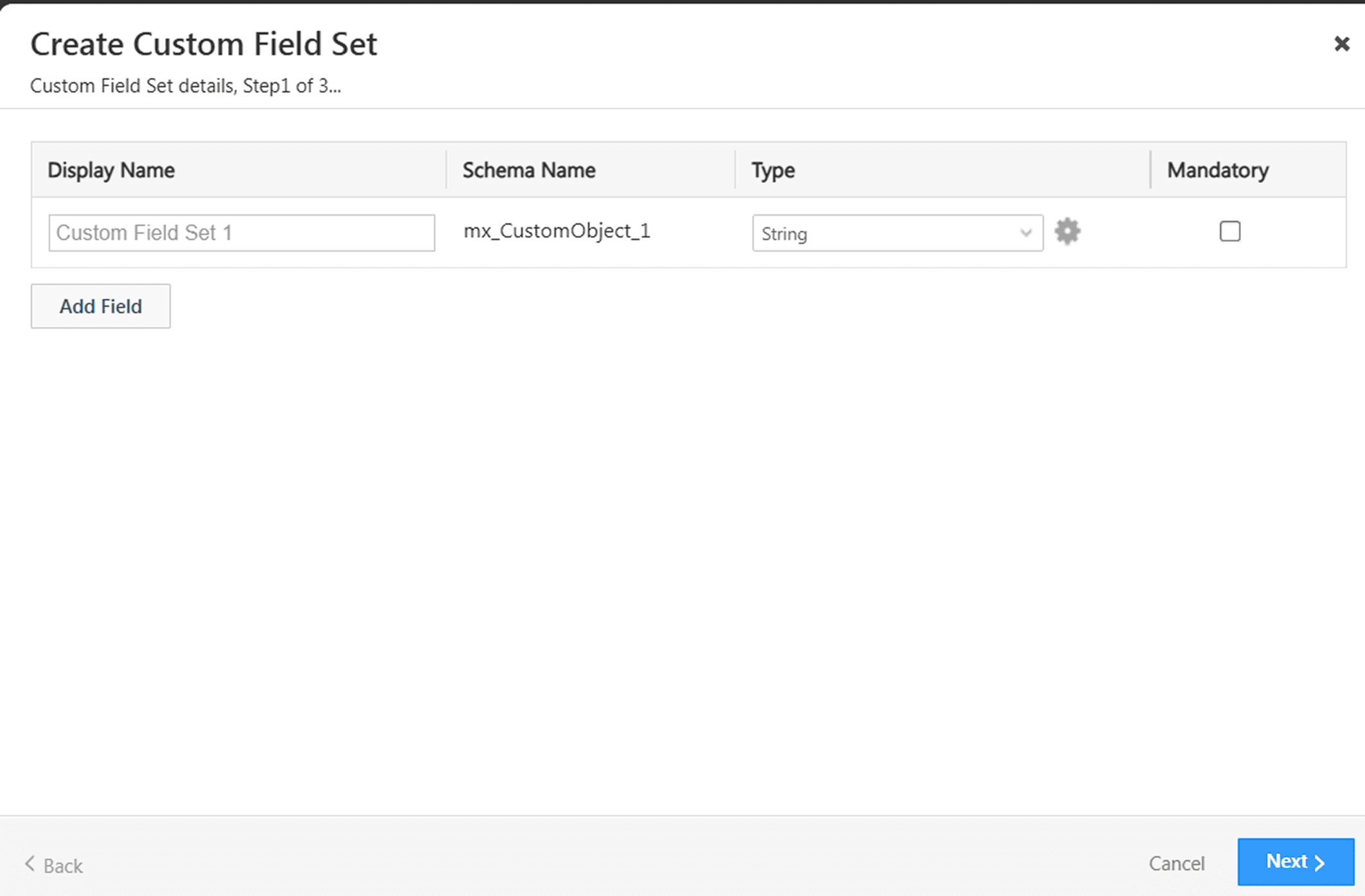
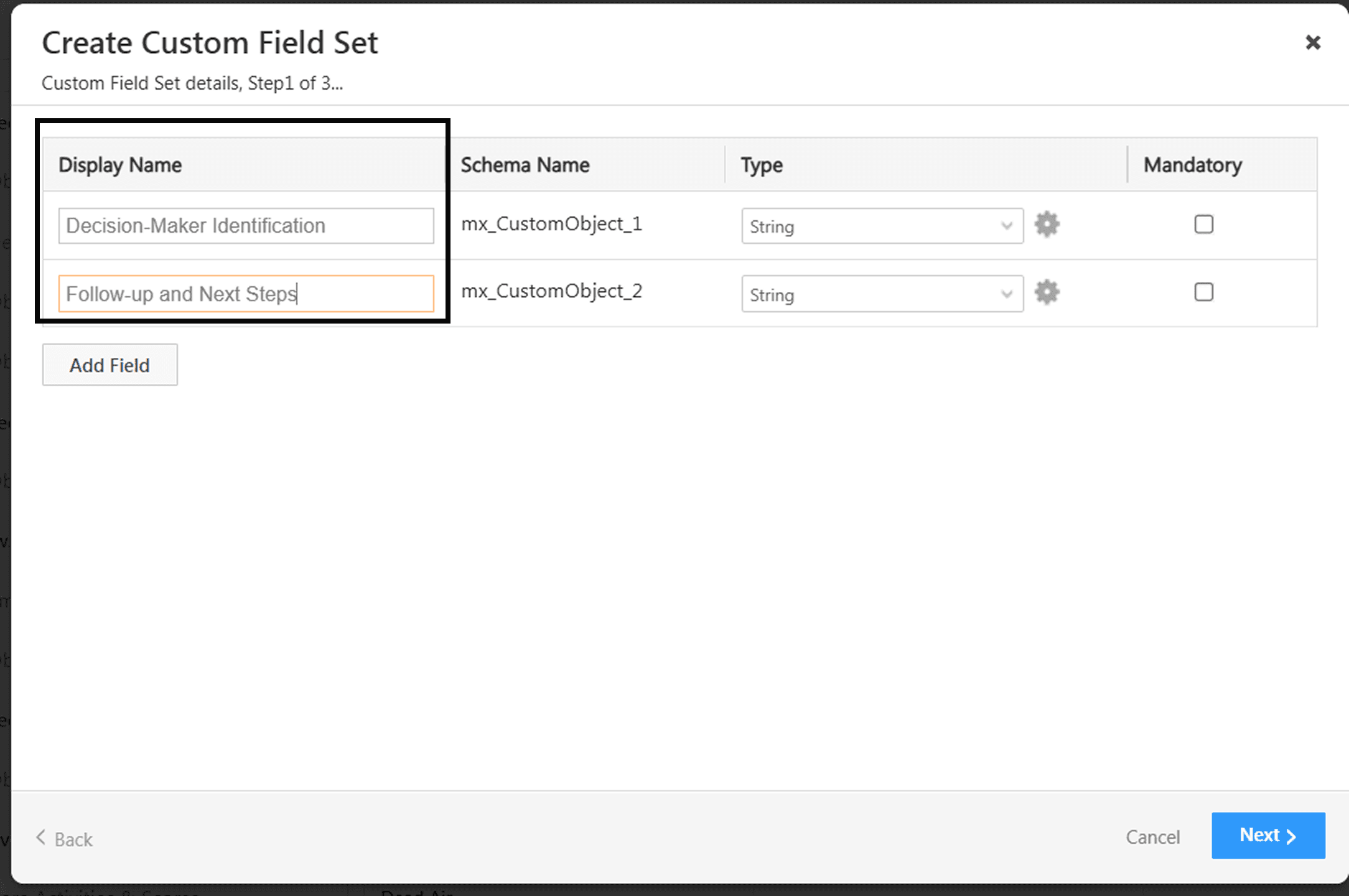
Now enter the exact PARAMETER NAME from your Zipteams account in Quality Parameters table in the "Display Name" section. After adding all the parameters under that PARAMETER GROUP, click on "Next".
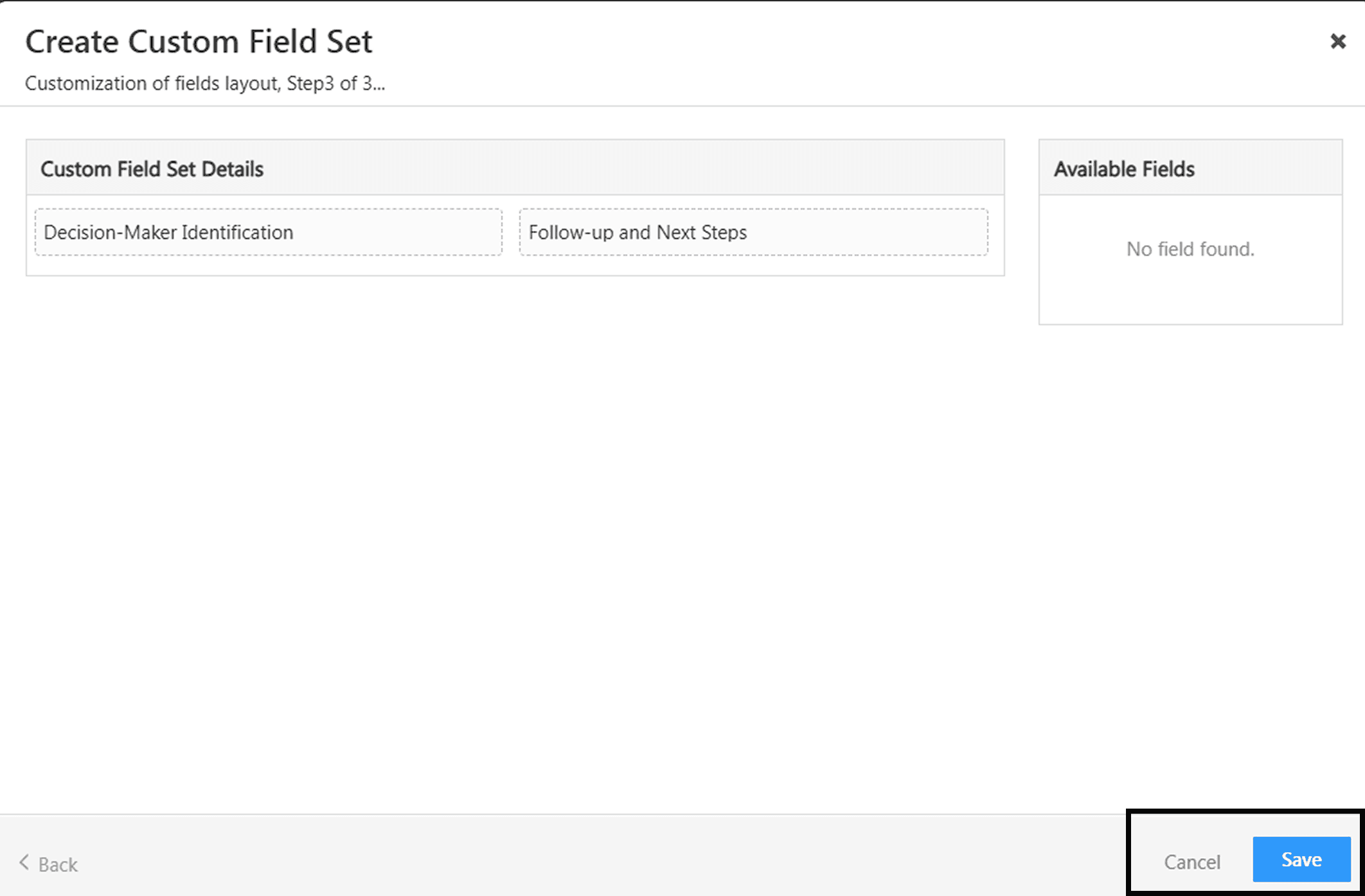
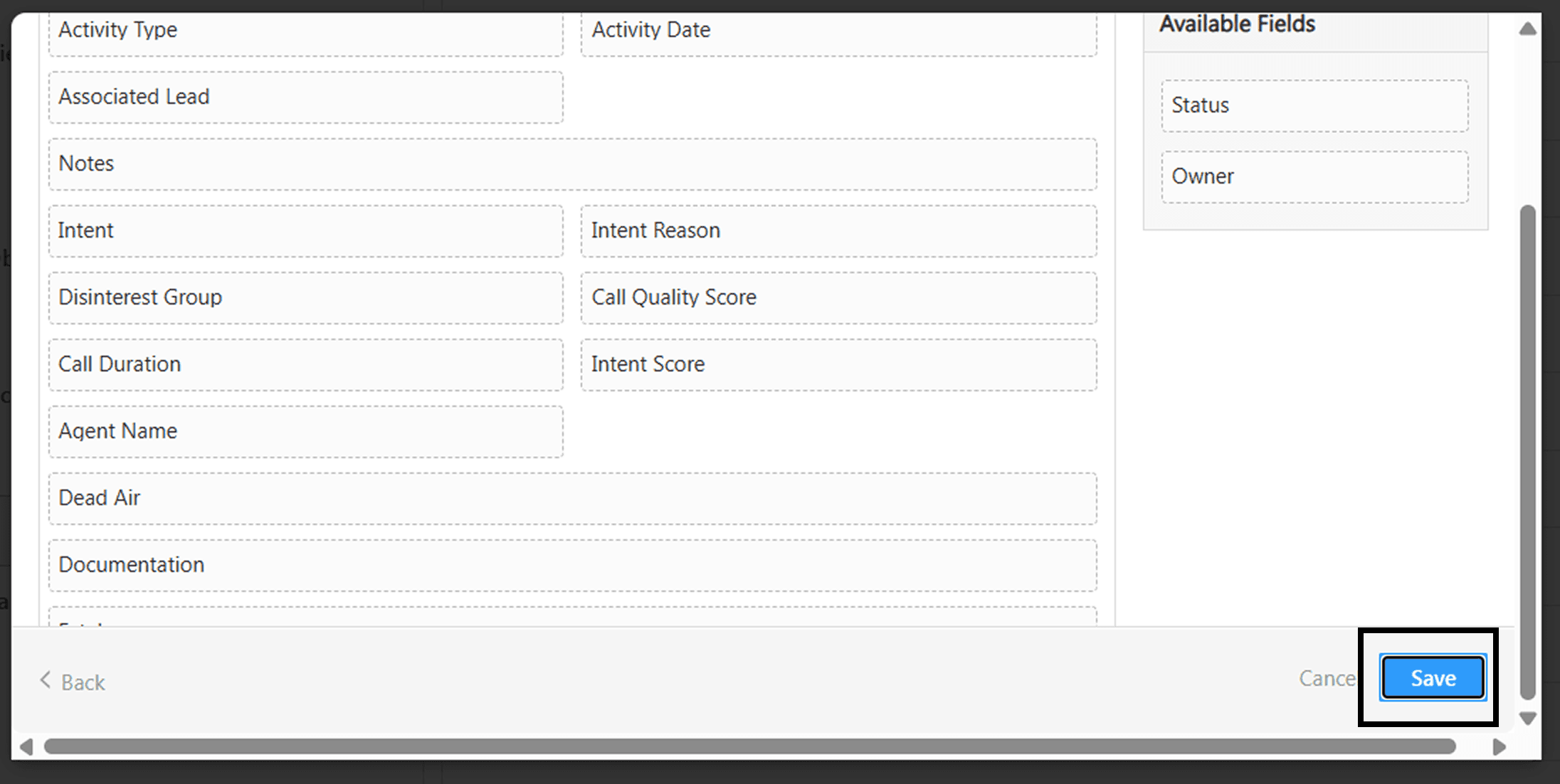
Now, in the next popup, click on "Save" button.
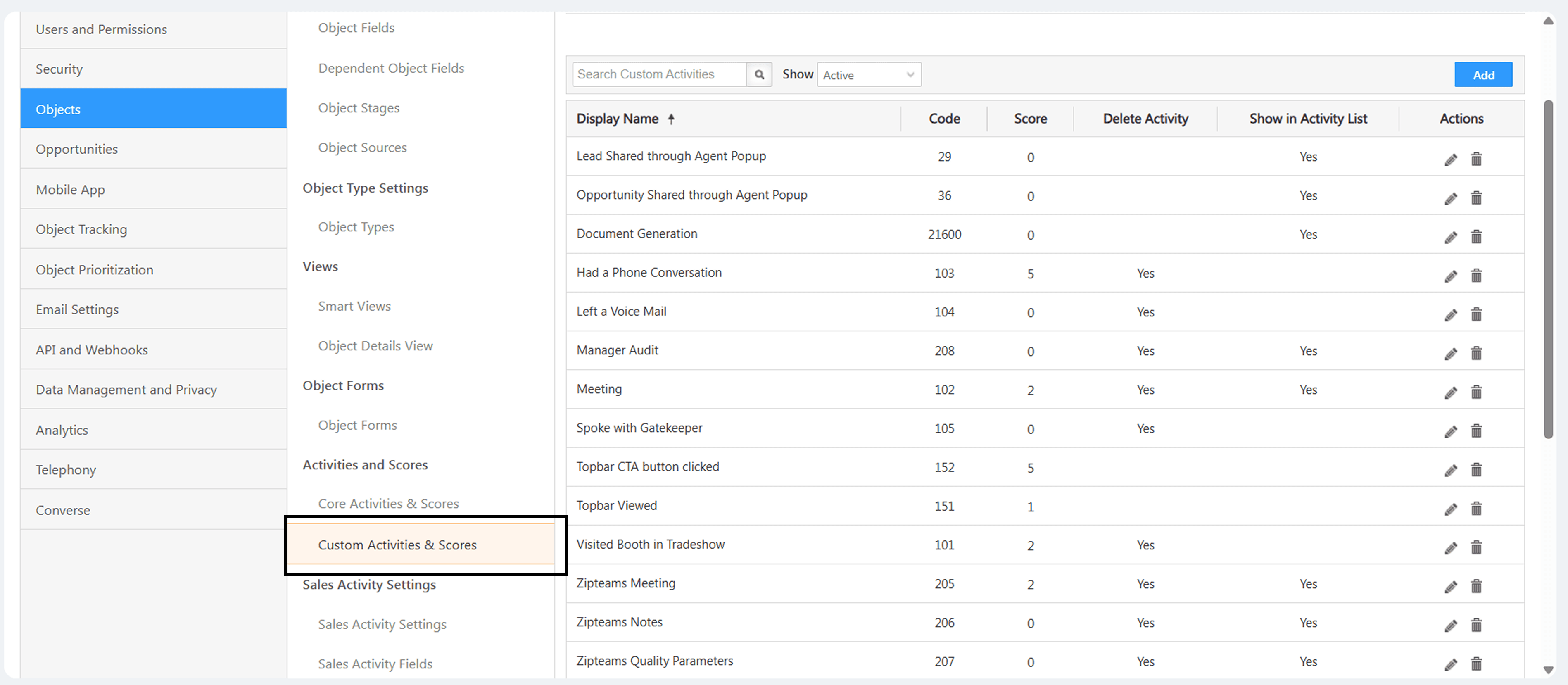
Navigate to Objects → Activities and Scores → Custom Activities & Scores.
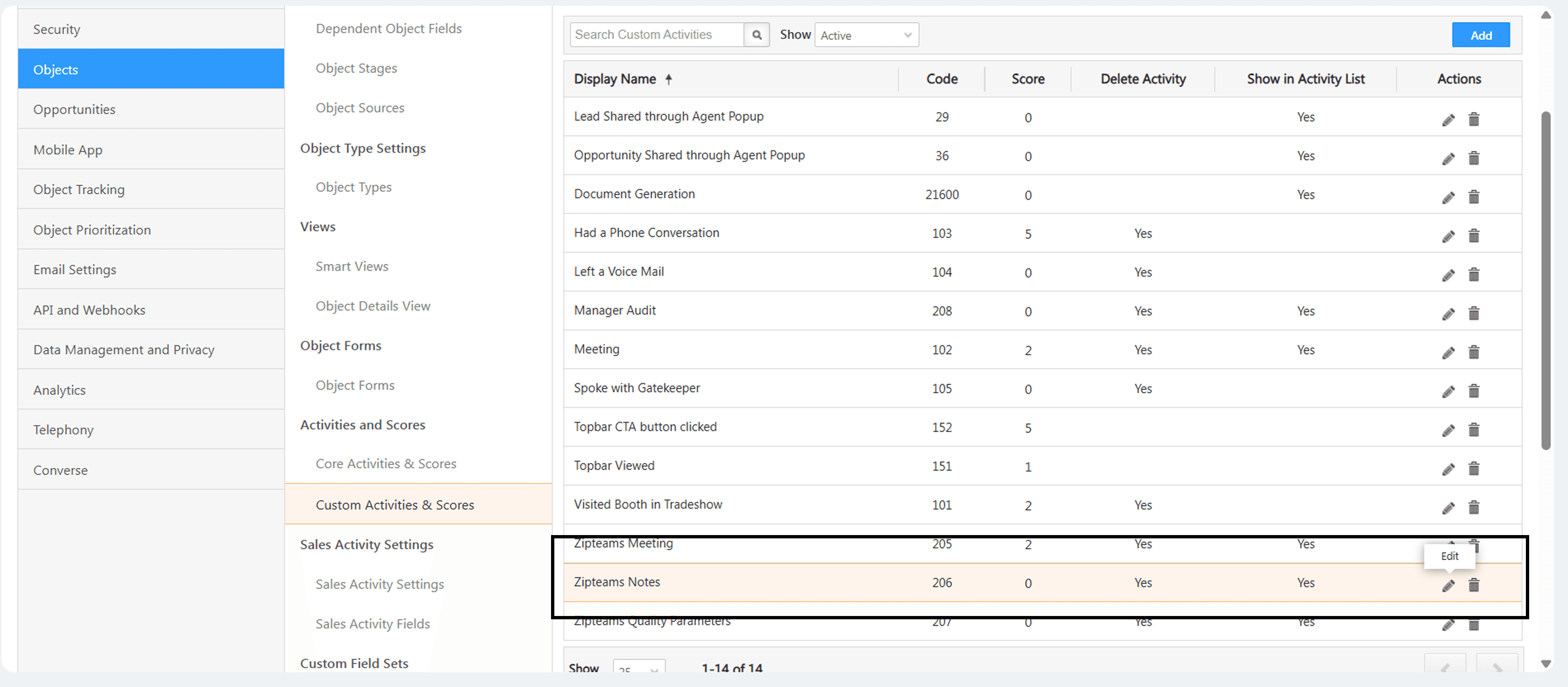
Find the "Zipteams Notes" row and click on the edit button for that row.
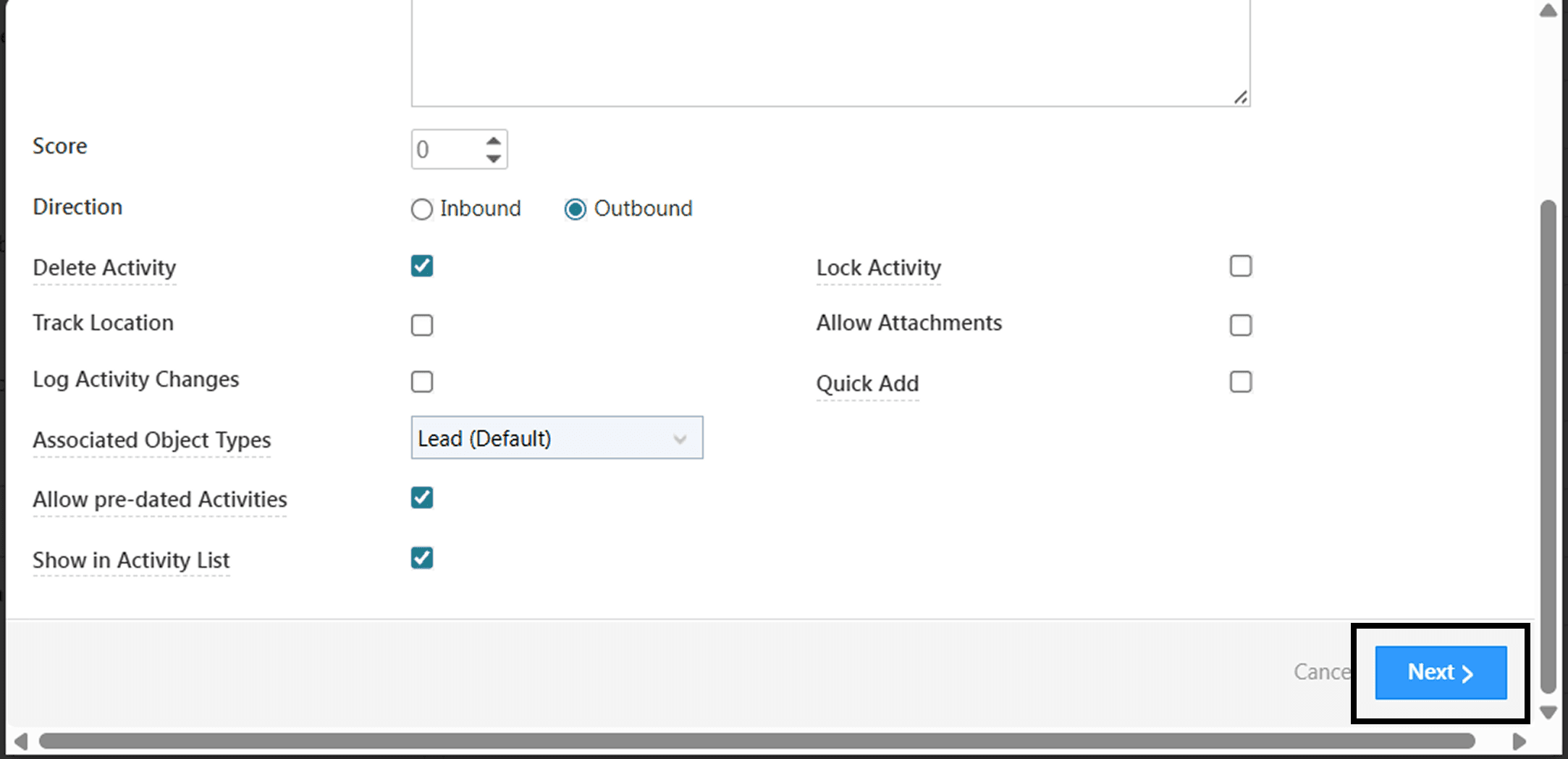
A new popup scroll to end and click on the button "Next"
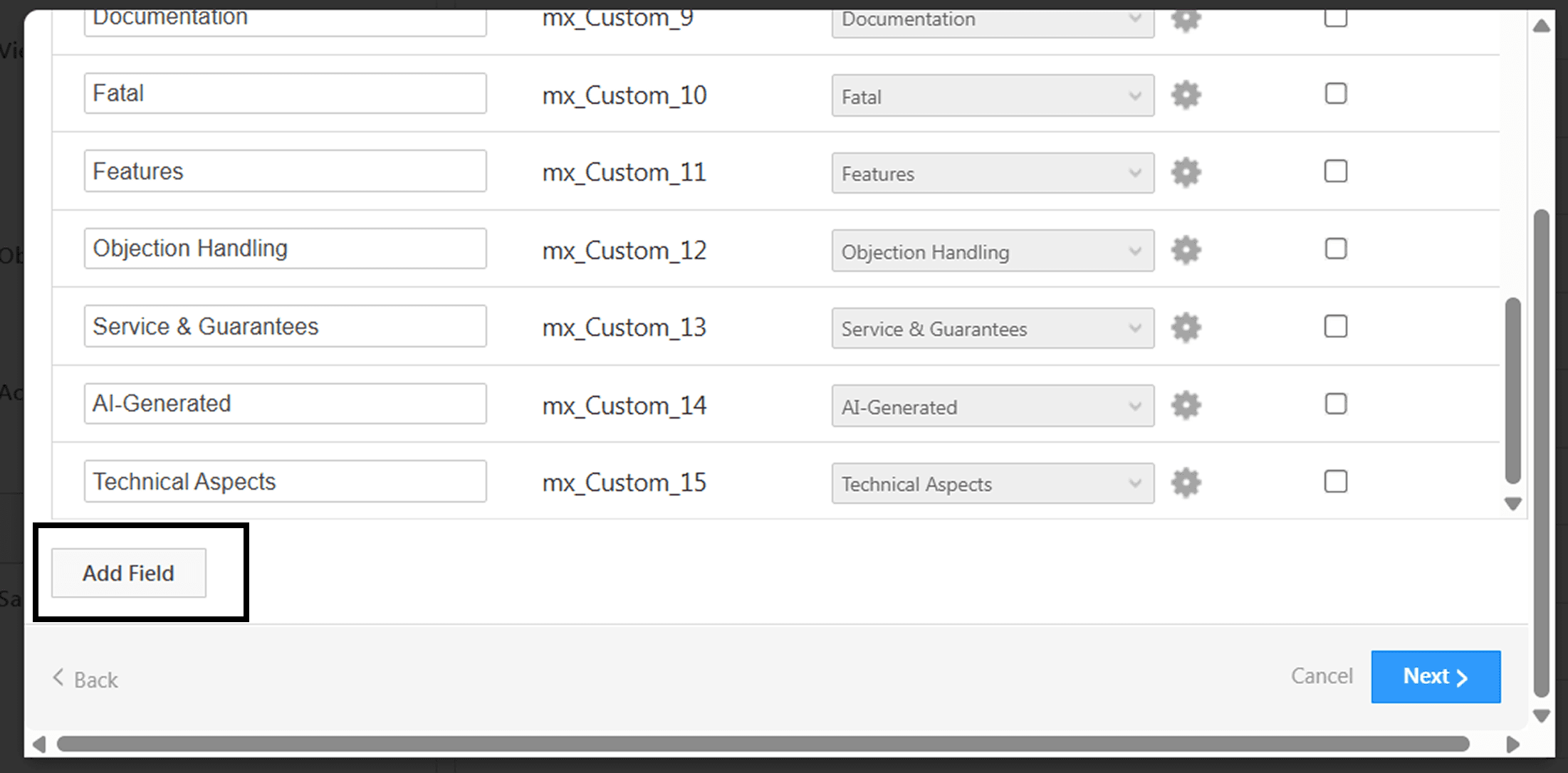
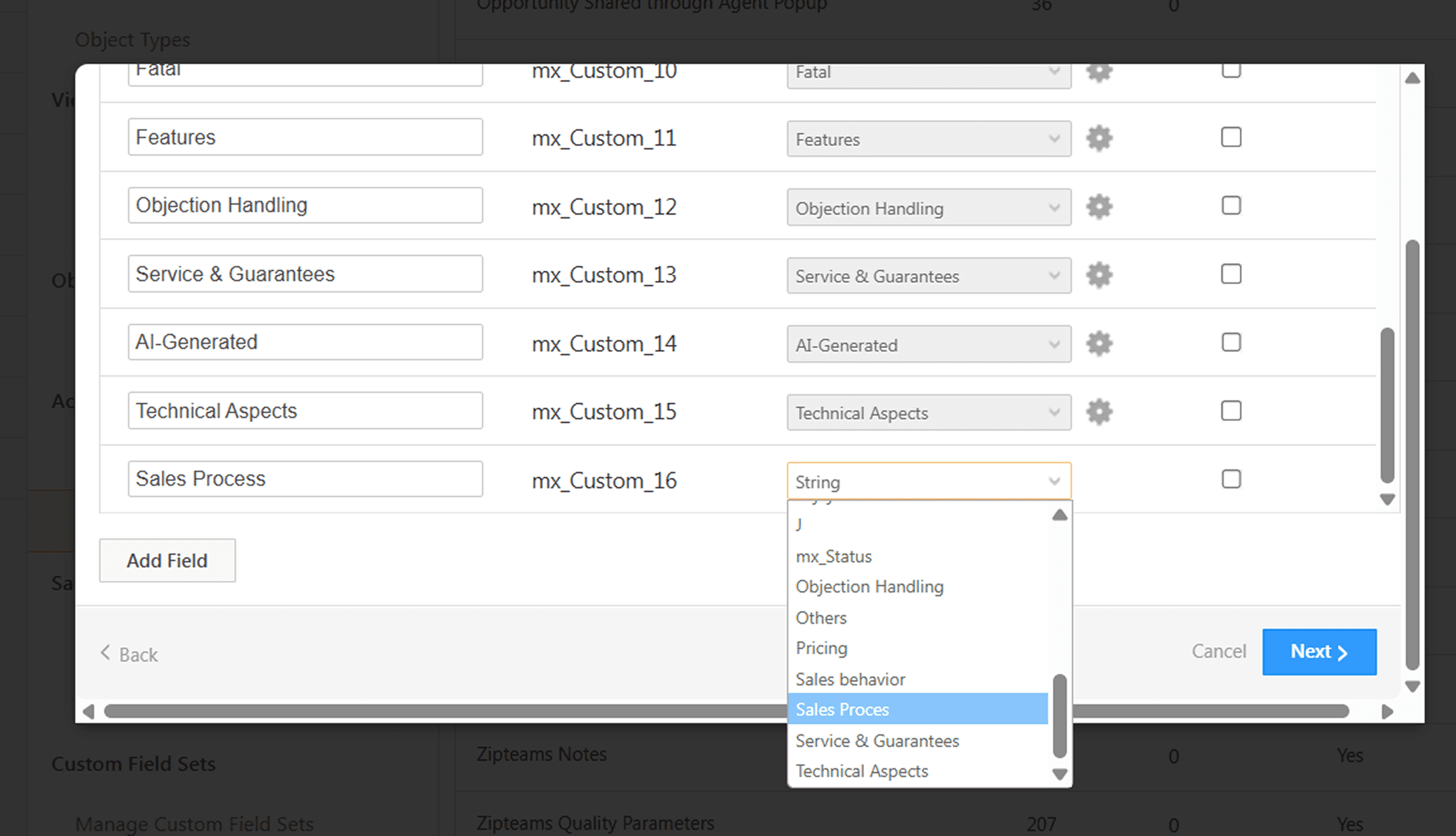
In the next popup, click on the "Add Field" button present at the end of the table.
In the newly added row, enter the PARAMETER GROUP in the Field Name and in the type, a dropdown will appear. In that, click on the same PARAMETER GROUP you had added previously (in the image: Sales Process) and click on Next.
Click on "Save" to apply the changes and sync the parameters to the Zipteams Notes activity.
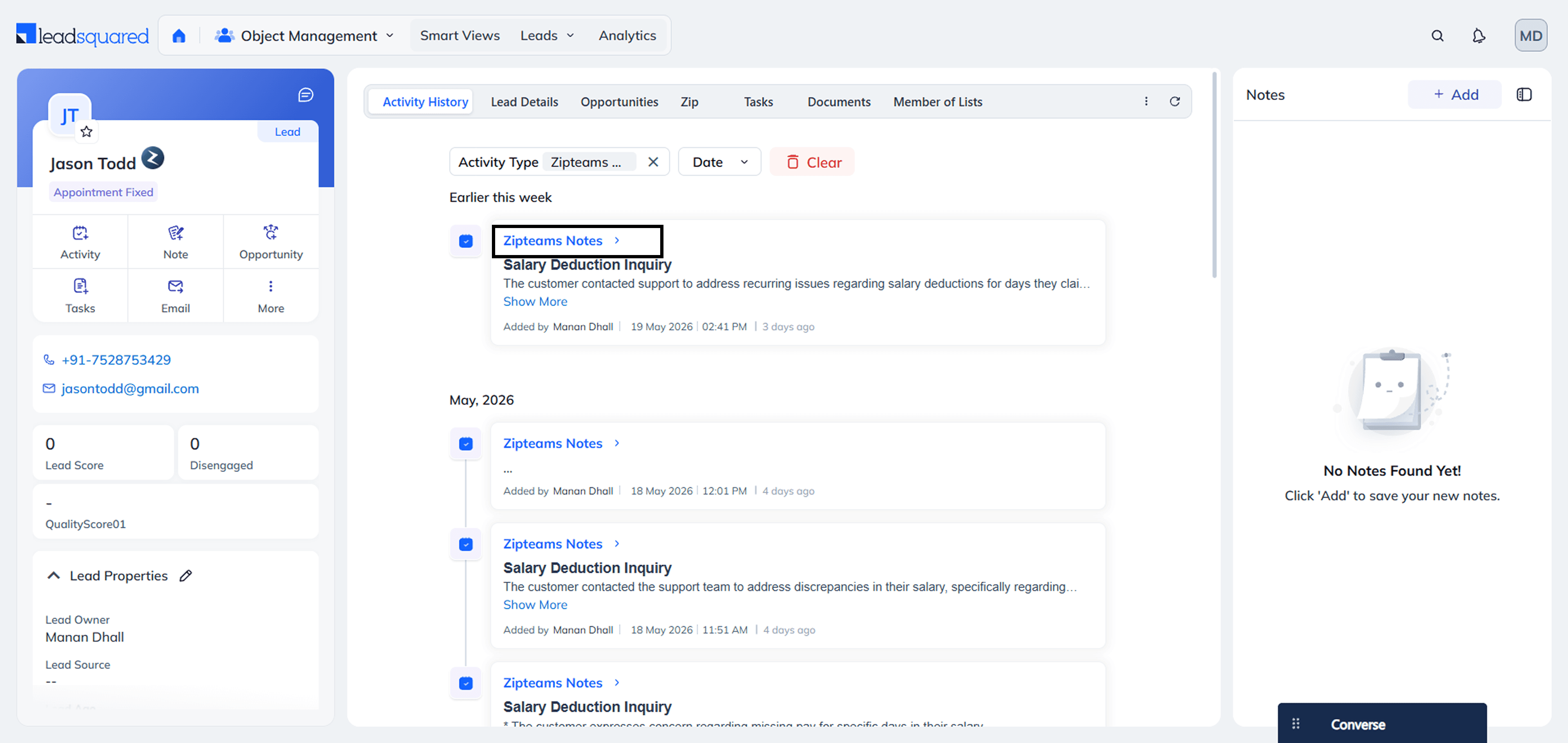
To view the parameter scores, open a Lead Details page and navigate to Activity History.Click on the Zipteams Notes activity highlighted in blue.
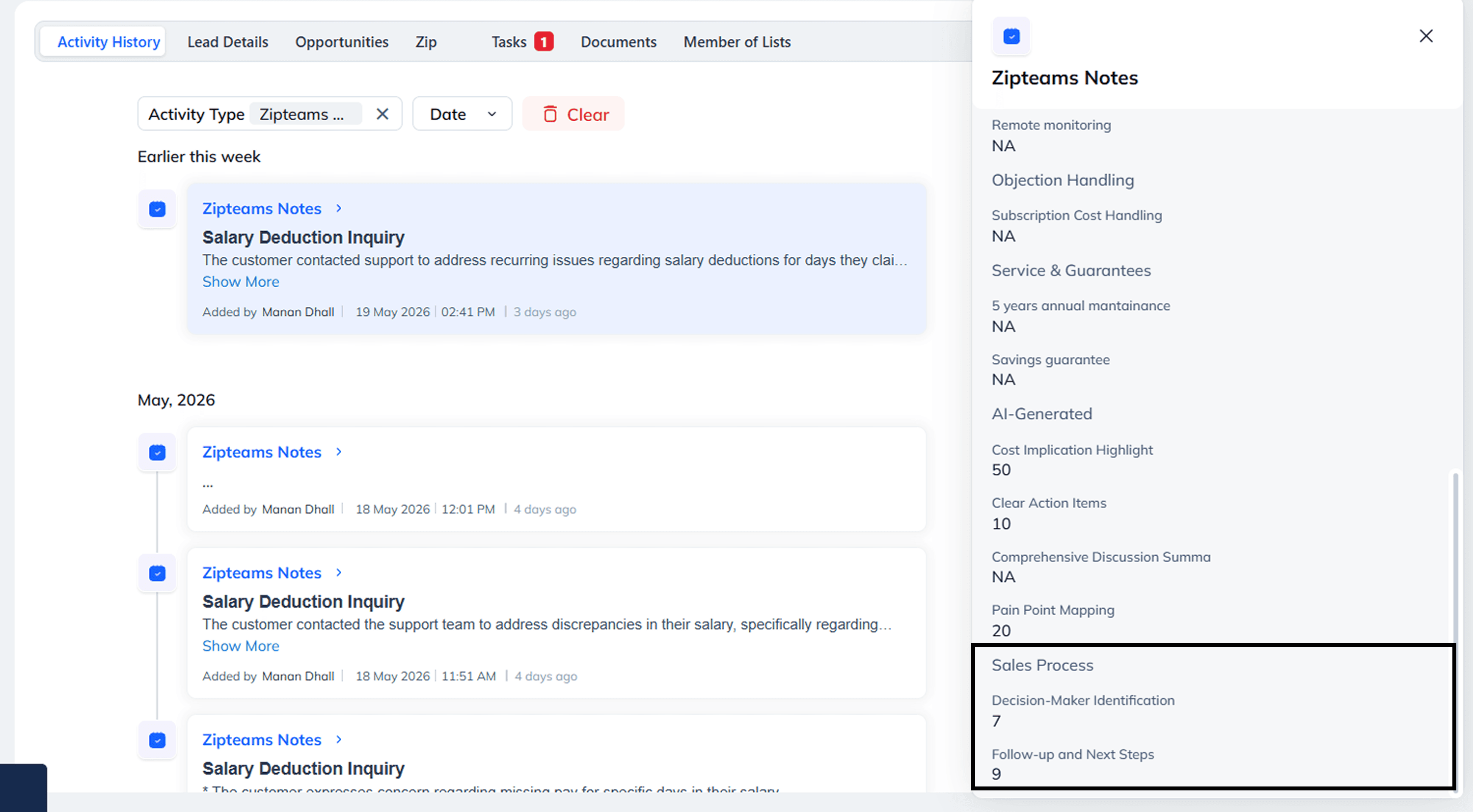
A sidebar will open displaying the synced Quality Parameter scores.
List of Apis we will use once the connection is made.
a
1. Create a Webhook
2. Retrieve a Webhook
3. Update a Webhook
4. Delete a Webhook
5. Get Lead Metadata
6. Get a Lead by Id
7. Get a Lead by Email
8. Get a Lead by Phone Number
9. Update a Lead
10. Get Metadata of an Opportunity
11. Get Opportunity Types
12. Get an Opportunity by Id
13. Update an Opportunity
14. Post an Activity on an Opportunity
15. Post an Activity on a Lead
16. Create a Custom Activity Type
17. Get List of Activity Types
18. Get Activity Details
19. Update an Activity
20. Create Task
21. Get Users
22. Get User by Id
23. Get User By EmailAddress
API Link- https://apidocs.leadsquared.com/overview/#api
Congratulations! You’ve successfully integrated your LeadSquared with Zipteams.
Get started using our sales acceleration features and for any feedback or issues, talk to us instantly at zipme.at/zipteams or write to us at hello@zipteams.com.